
 ENGLISH (US)
 ESPAÑOL
How to connect Get Response with AI Team Up
Welcome to our quick and informative guide on 'How to Connect GetResponse with AI Team Up.' In this video, we'll walk you through the easy steps to seamlessly integrate GetResponse, a powerful email marketing platform, with AI Team Up, an advanced AI collaboration tool. I'm going to show you how to unlock the full potential of both platforms working together. Let's get started!
Go to aiteamup.com
1. Click on the account from your AI TeamUp
Click on the account from your AI Team Up
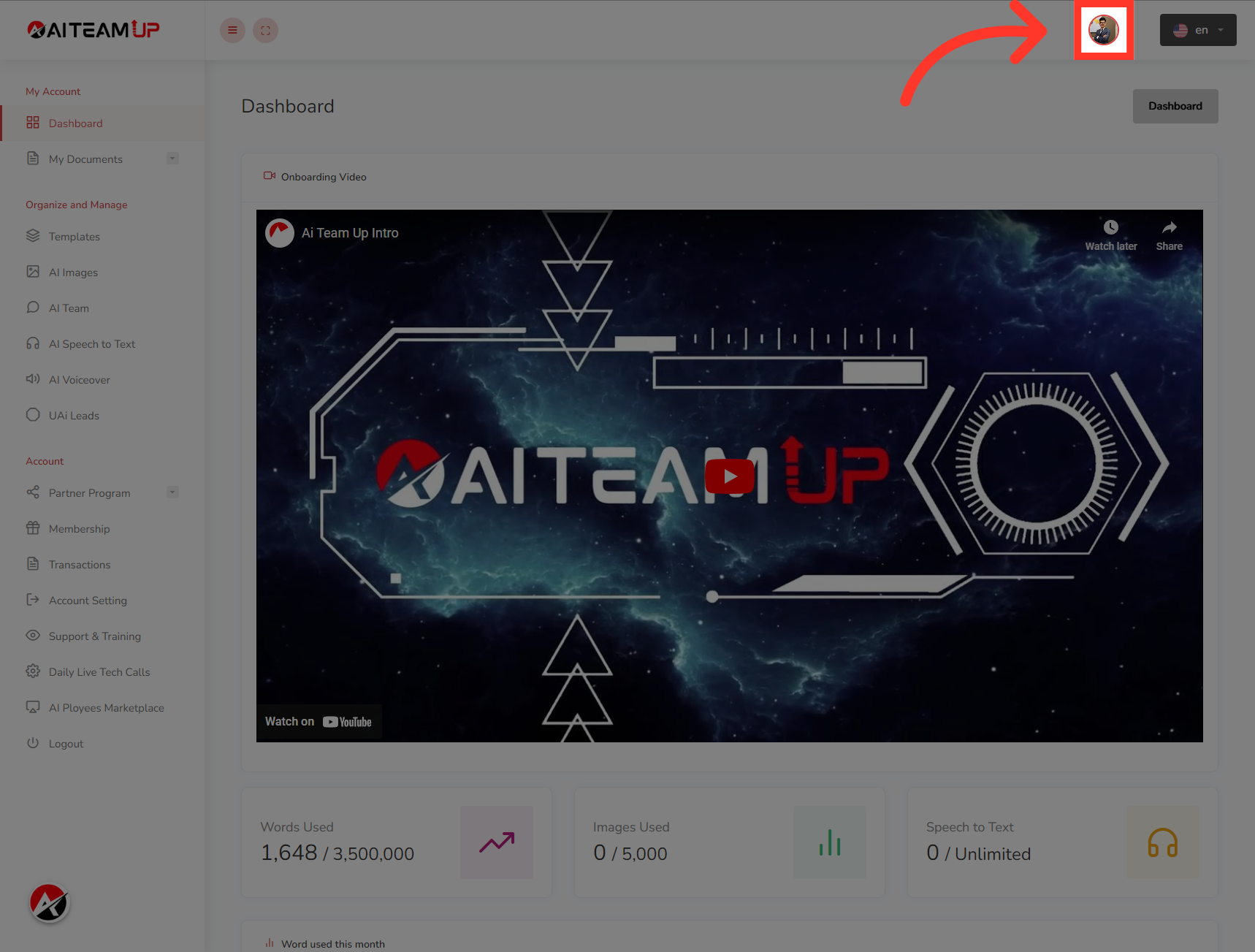
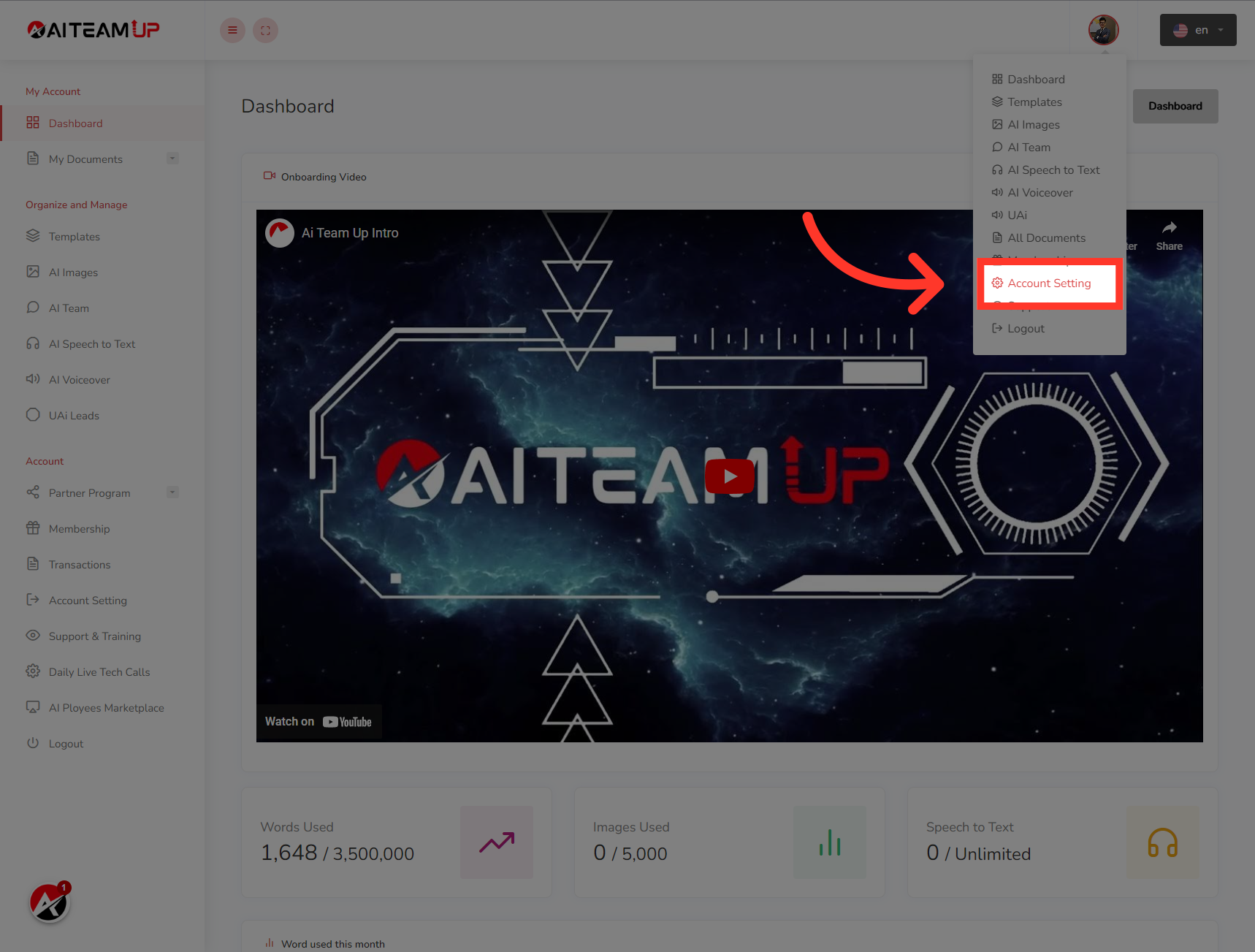
2. Click "Account Setting"
Navigate to the "Account Setting" section.
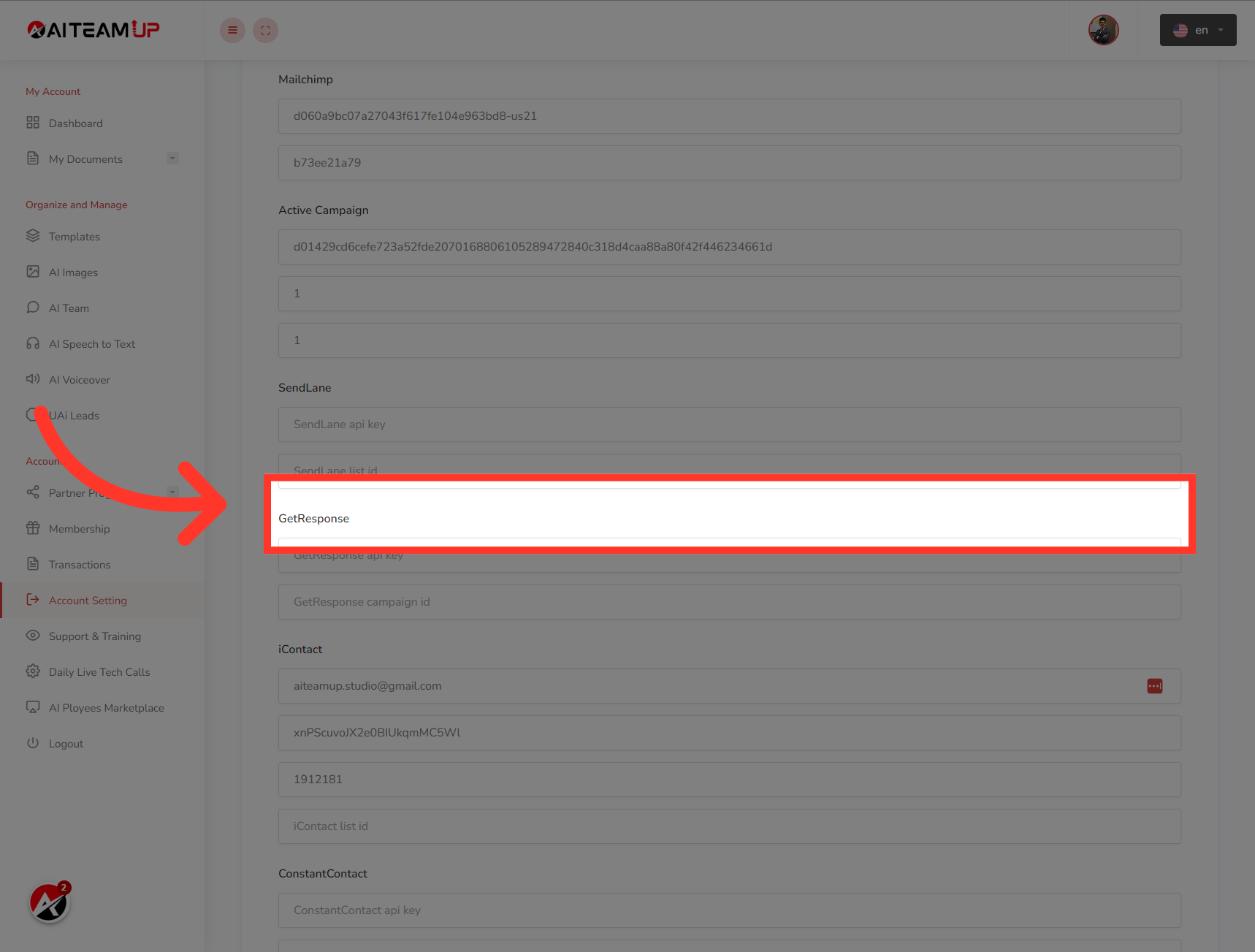
3. Click "GetResponse"
Select the "GetResponse" option.
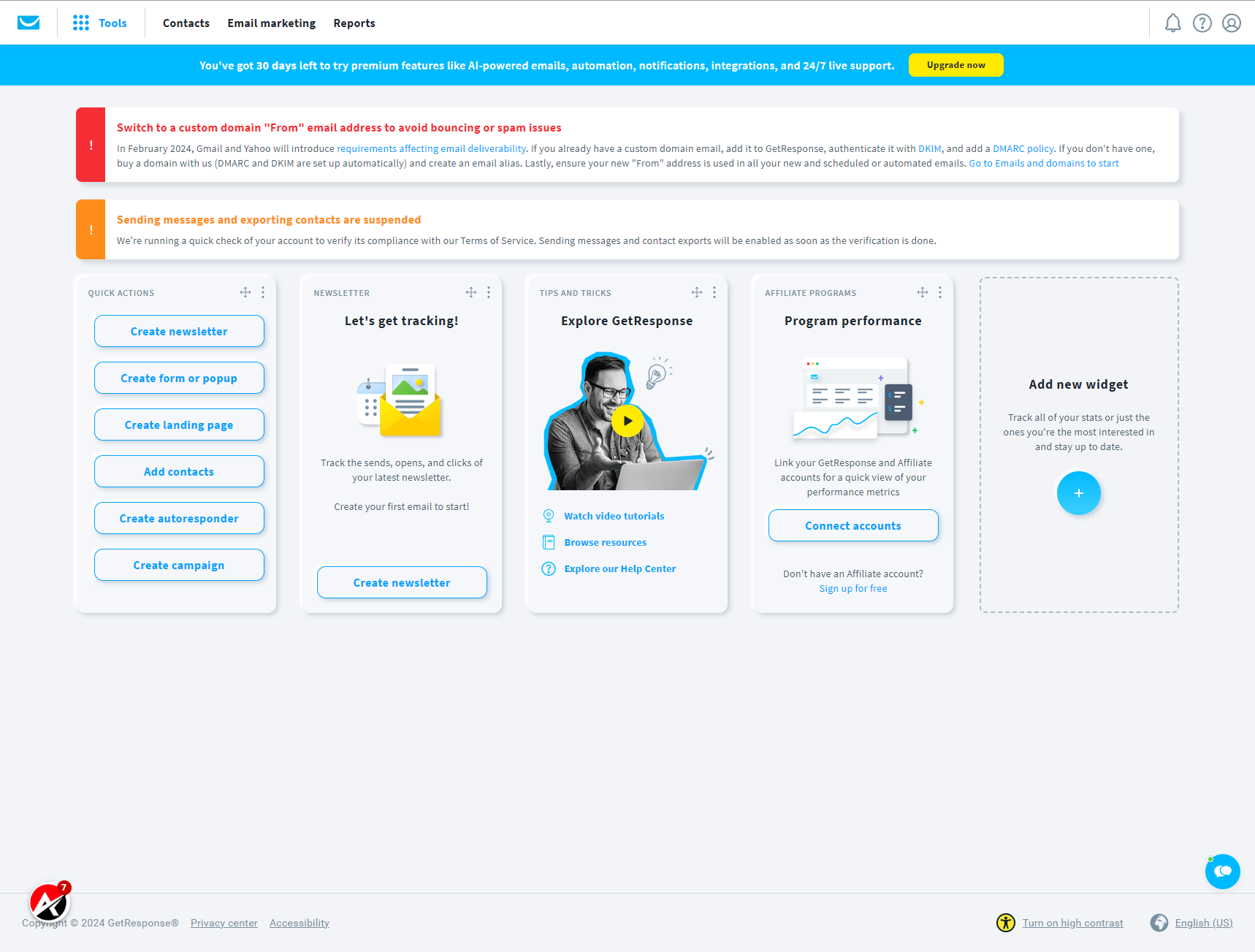
4. Switch to "app.getresponse.com"
Switch to "Get Response" and login to your account to get the necessary information we need for this integration.
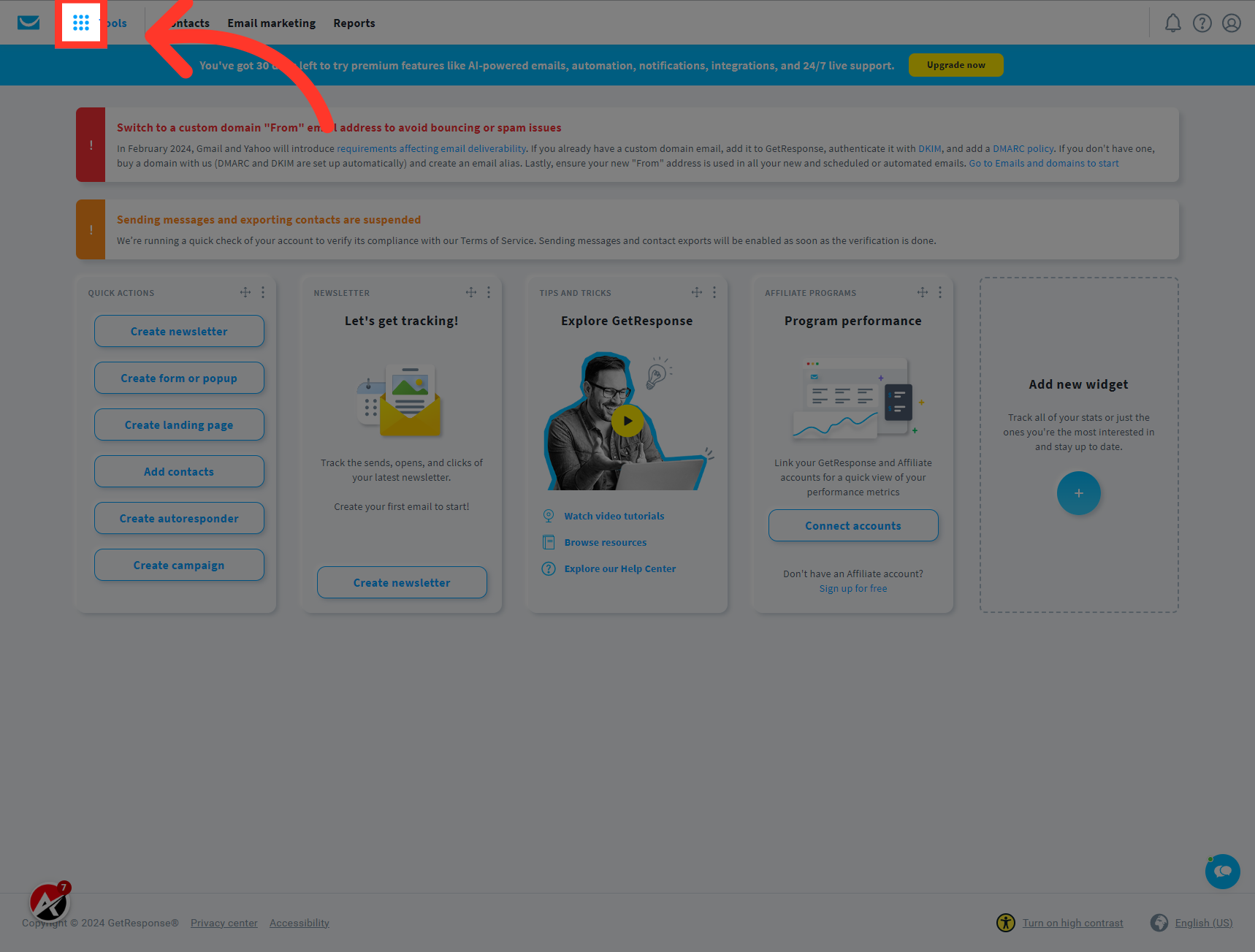
5. Click the Tools button to expand the menu
Click the Tools button to expand the menu
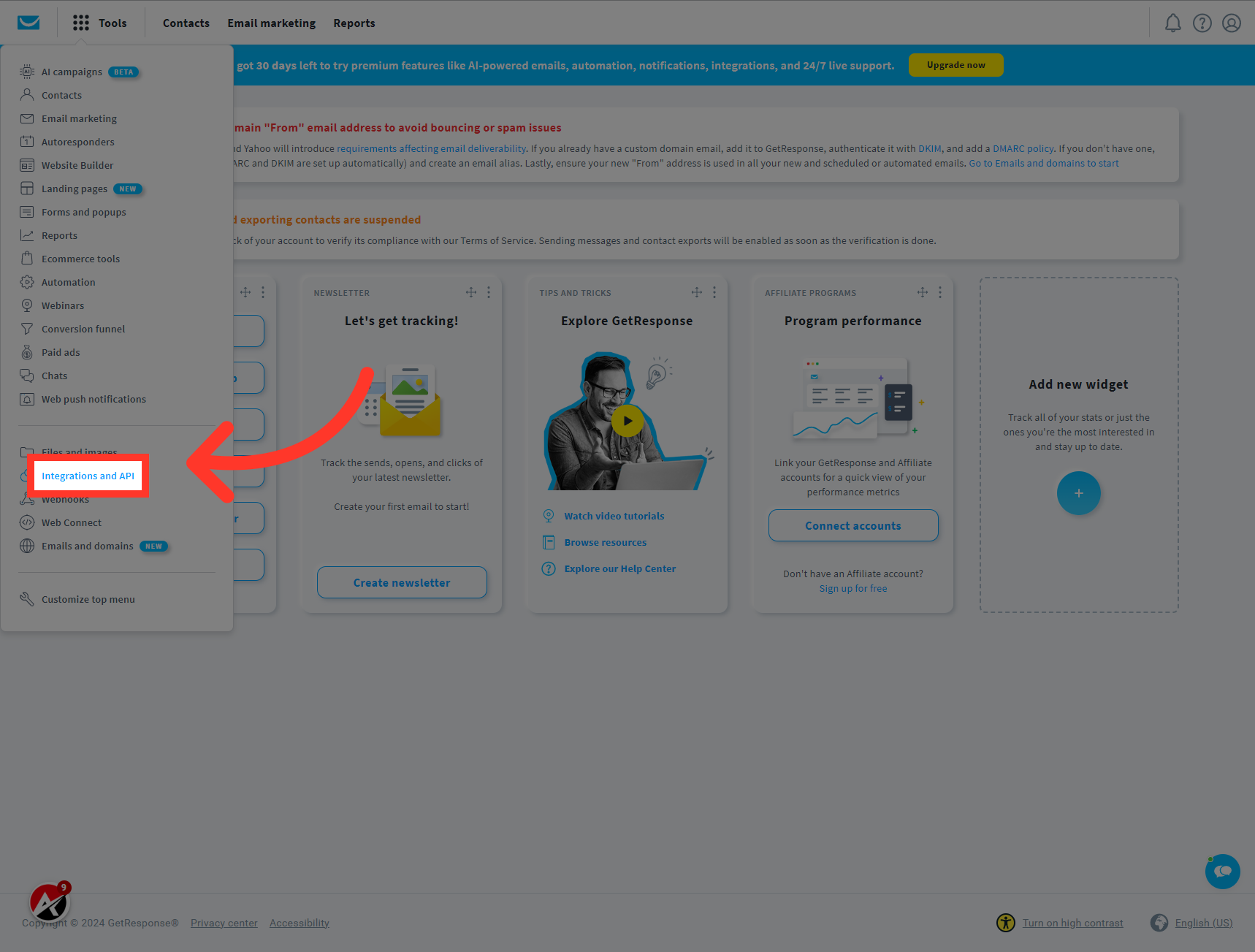
6. Click "Integrations and API"
Navigate to the "Integrations and API" section.
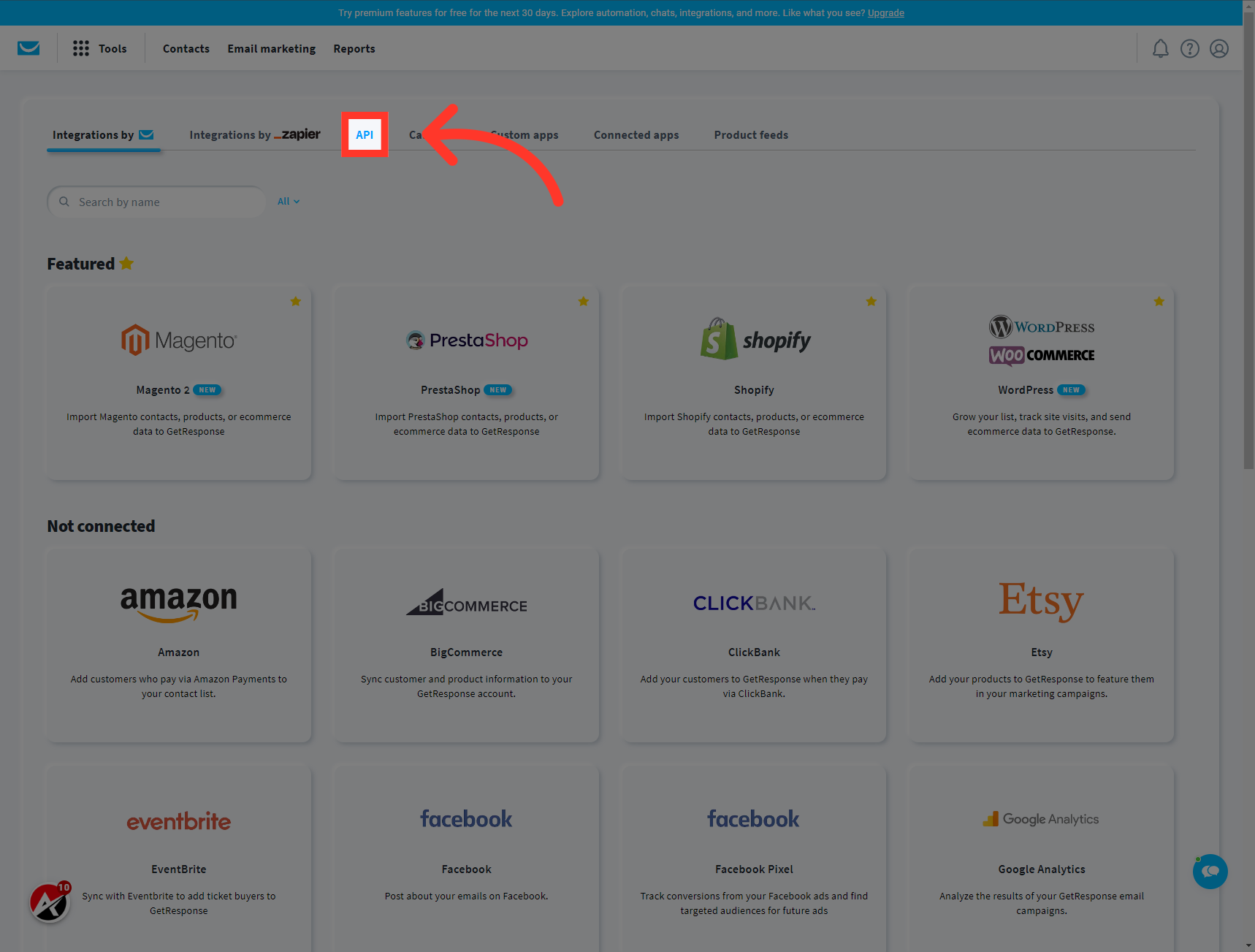
7. Click "API"
Select the "API" option.
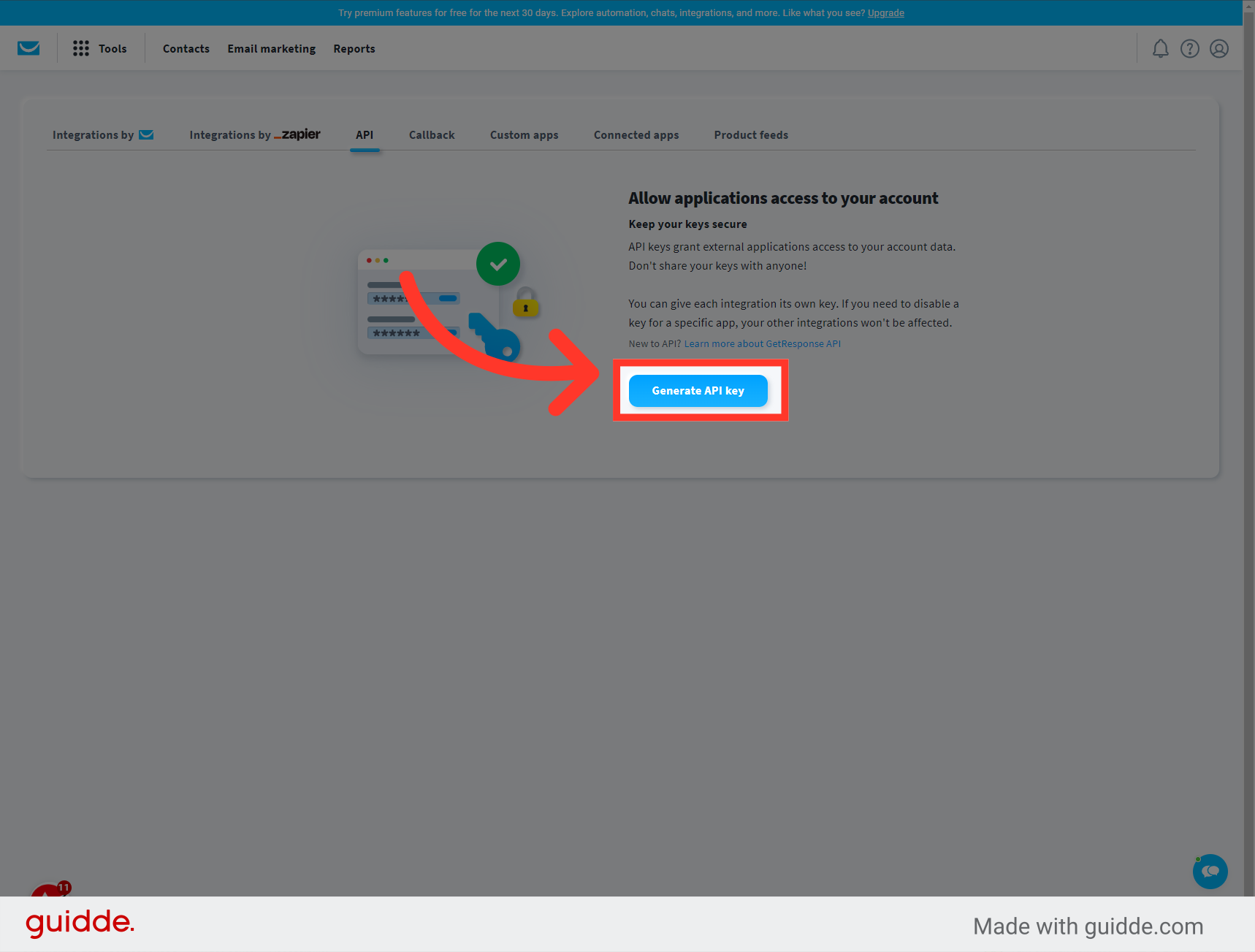
8. Click "Generate API key"
Now Click on the "Generate API key" button. To generate an API key that you can use on the AI Team Up
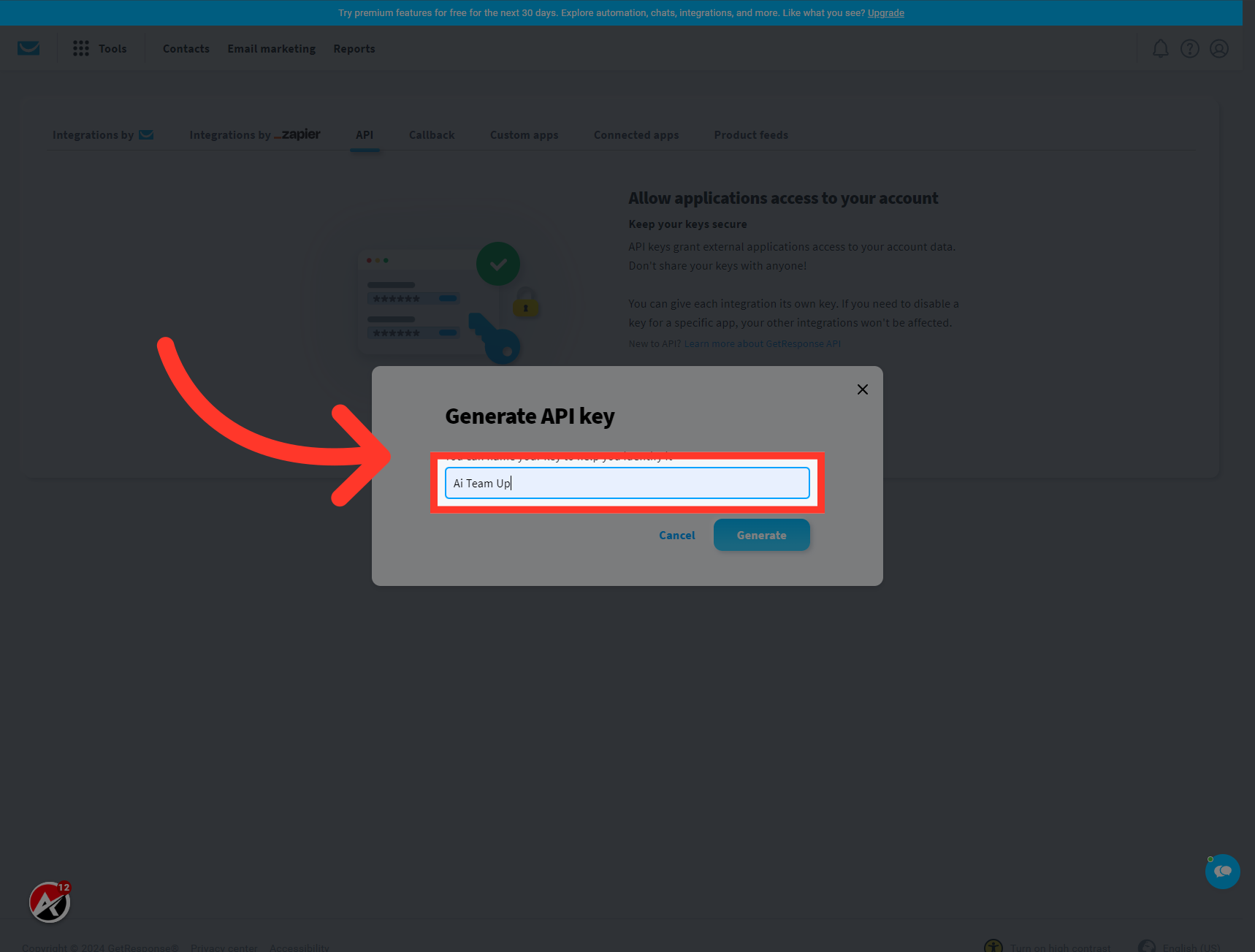
9. Give it a name. In my case I'm going to use "AI Team Up" in the provided field.
Give it a name. In my case I'm going to use "AI Team Up" in the provided field.
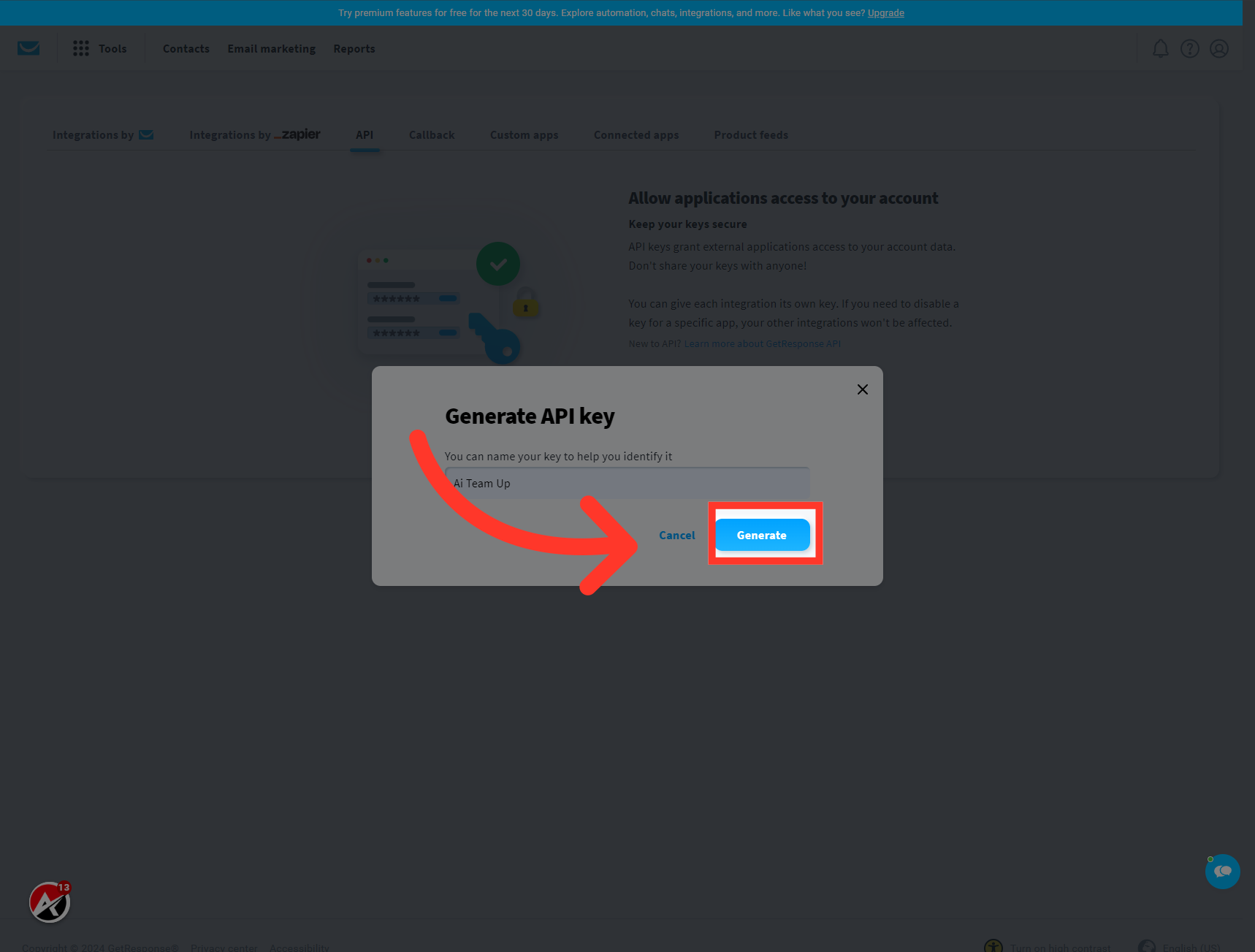
10. Click "Generate"
Click on the "Generate" button.
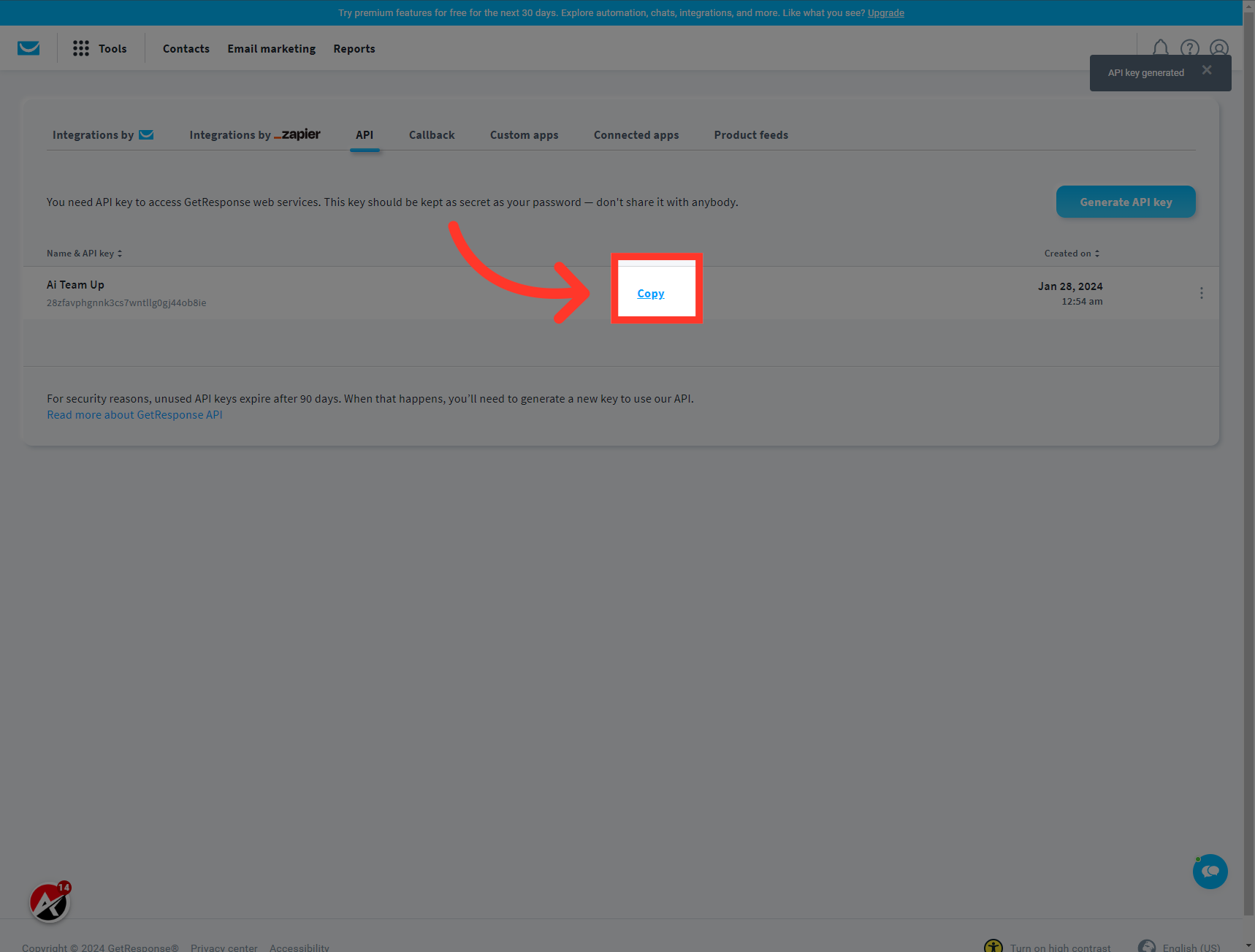
11. Click "Copy"
Click on the "Copy" button to copy the API key.
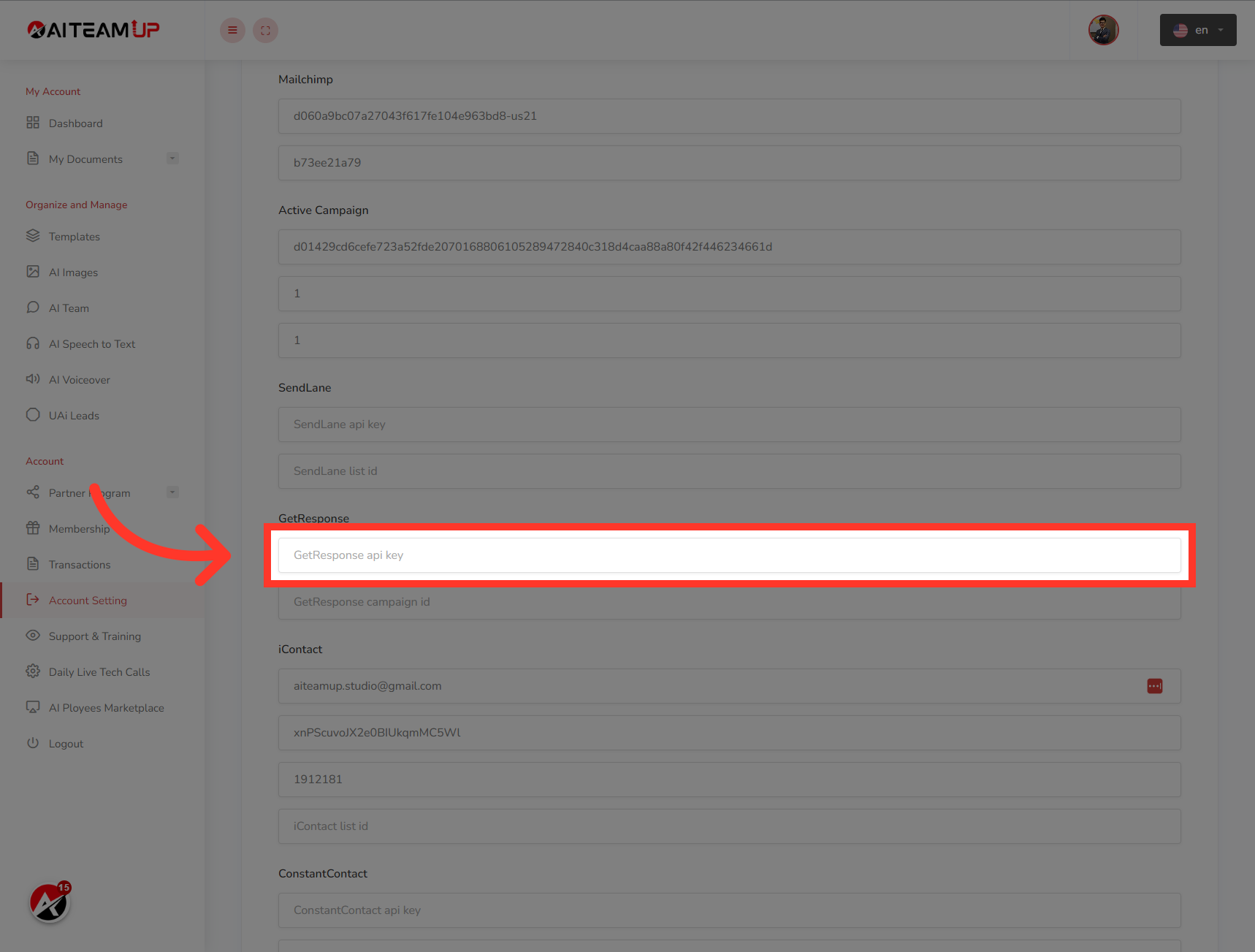
12. Click "GetResponse api key"
Now Navigate to "AI Team Up". now Click on the "GetResponse API key" field.
13. Enter the API key "That you copied from GetResponse" earlier.
Enter the API key "That you copied from GetResponse" earlier.
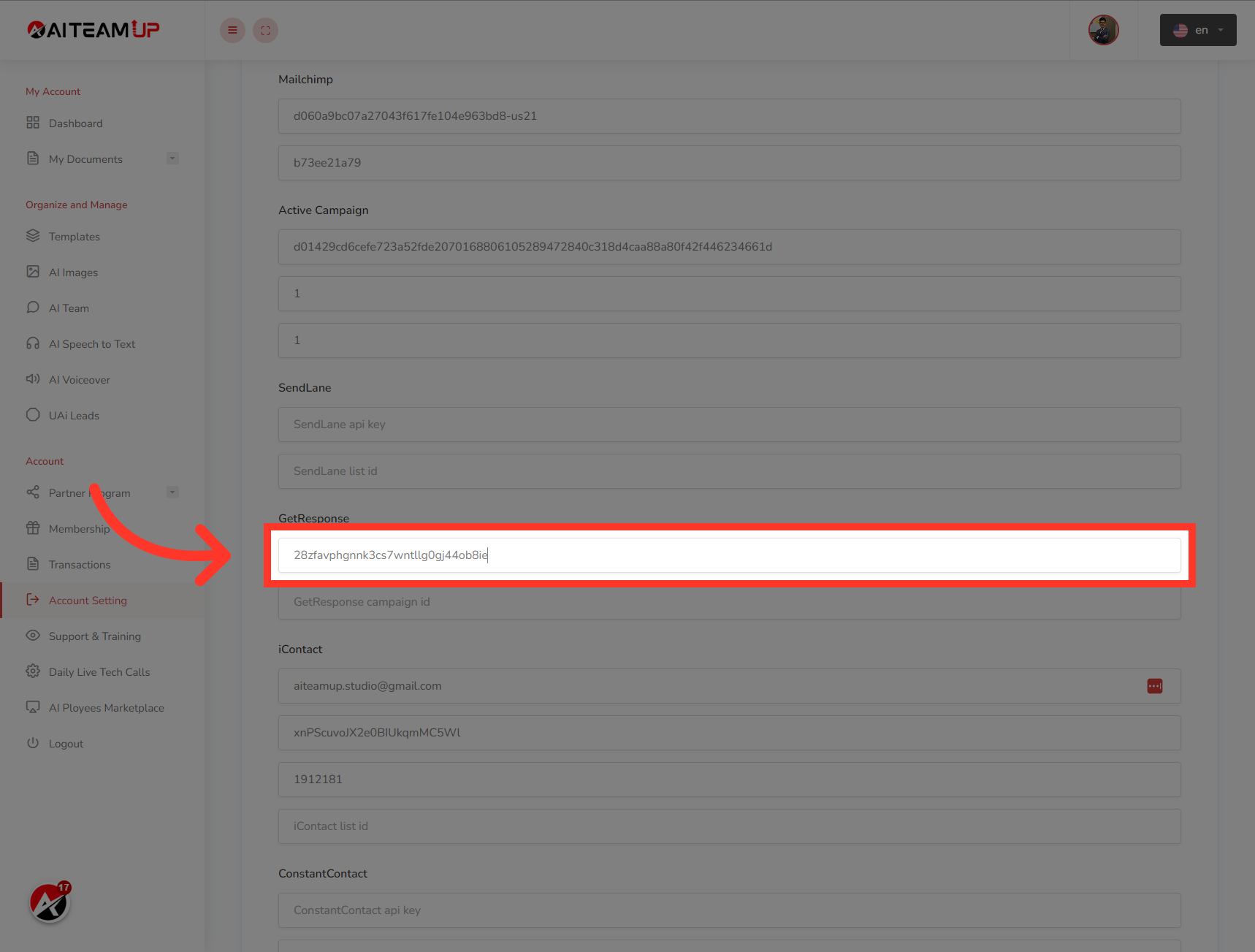
14. Switch to "app.getresponse.com"
Go to "GetResponse" again to grab the Campaign ID
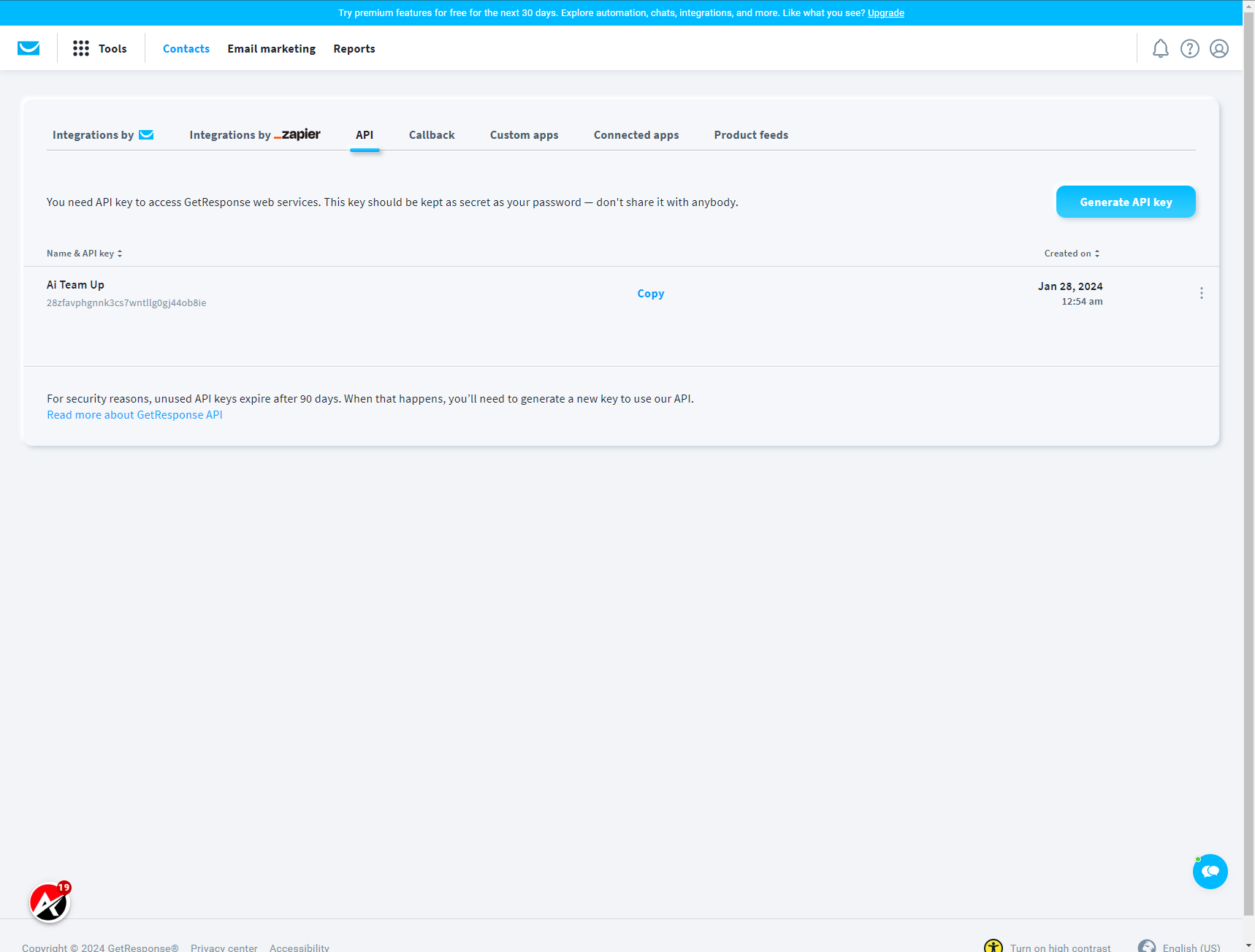
15. Click "Contacts"
Navigate to the "Contacts" section.
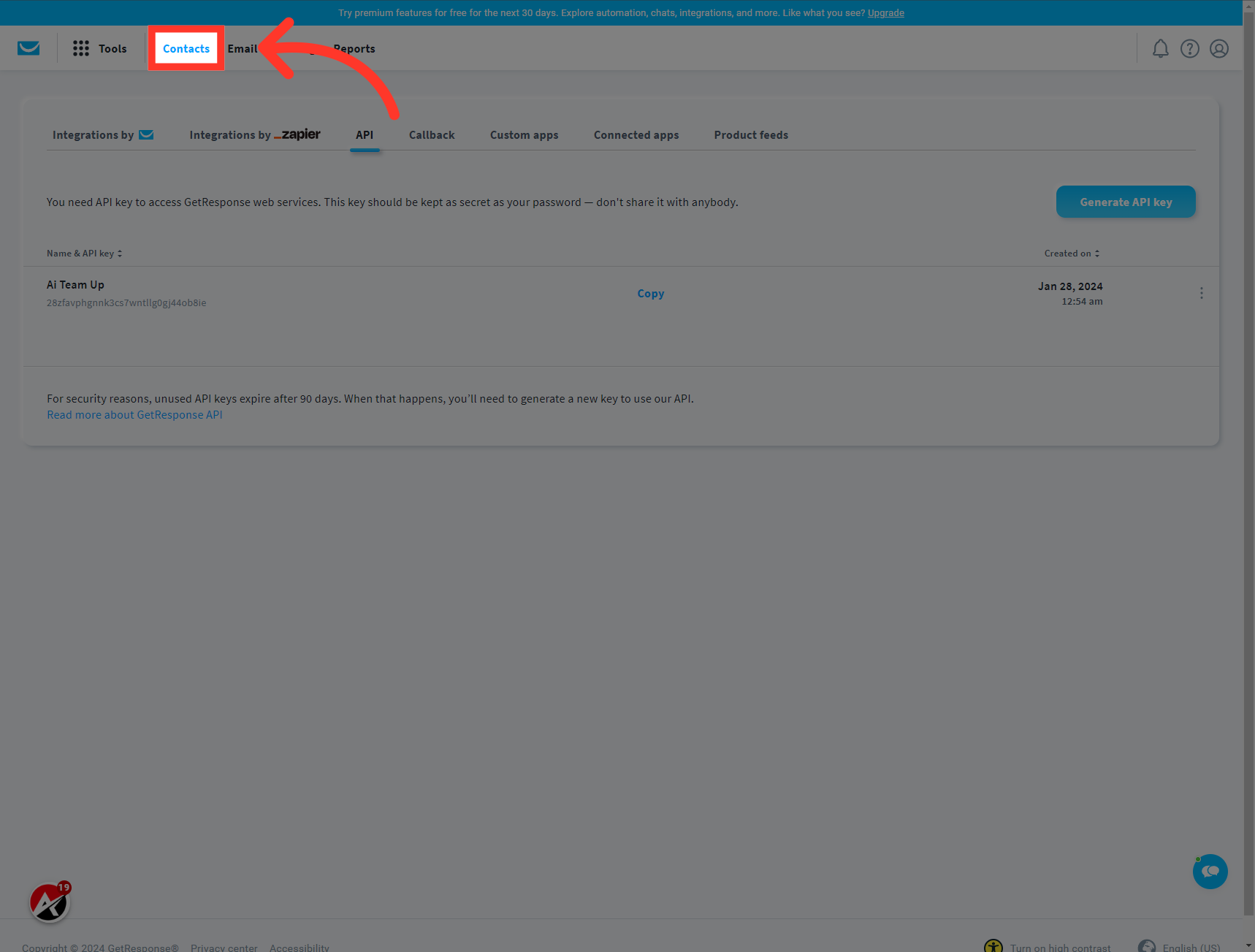
16. Click "Lists"
Select the "Lists" option.
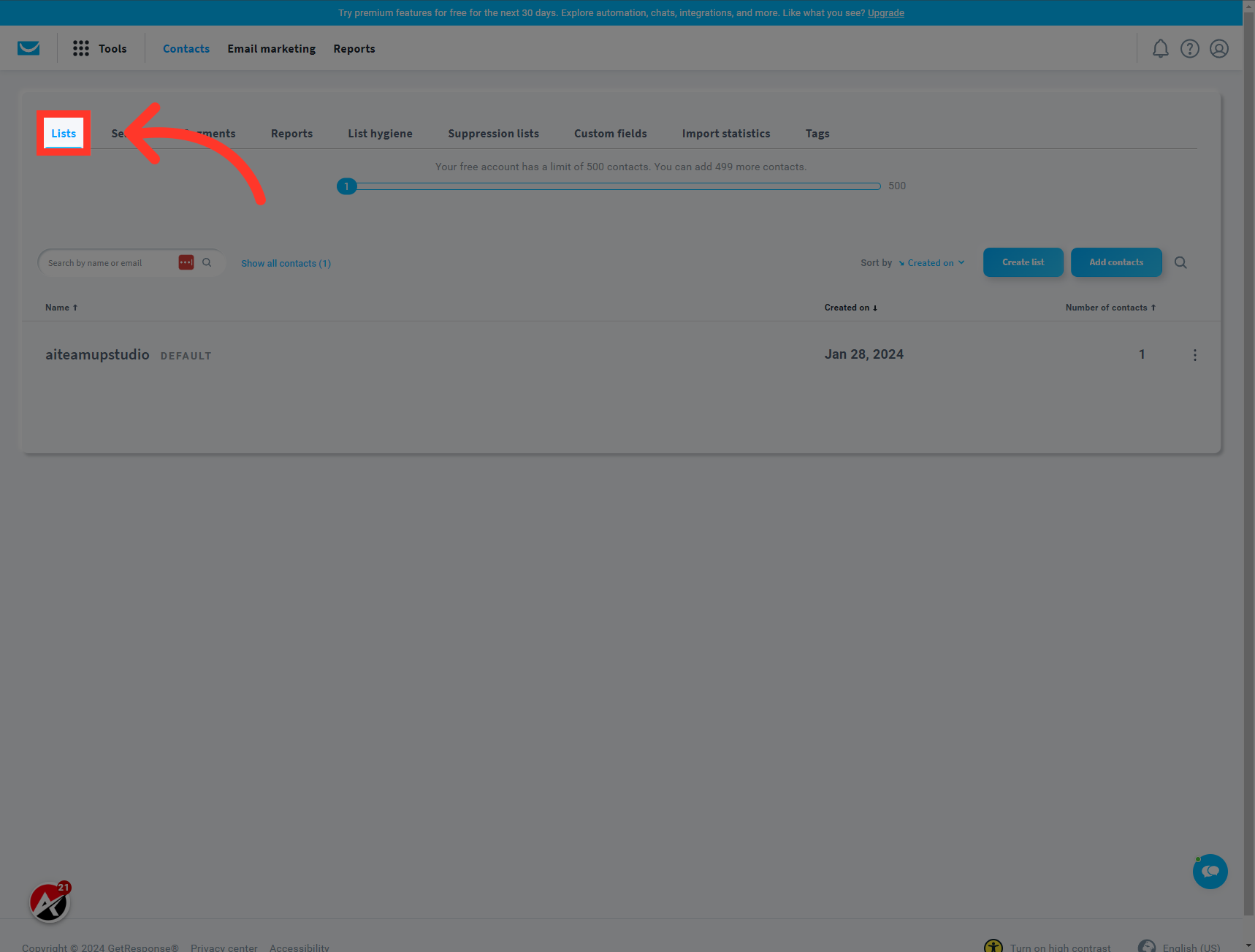
17. Click on the contact list you want.
Click on the contact list you want.
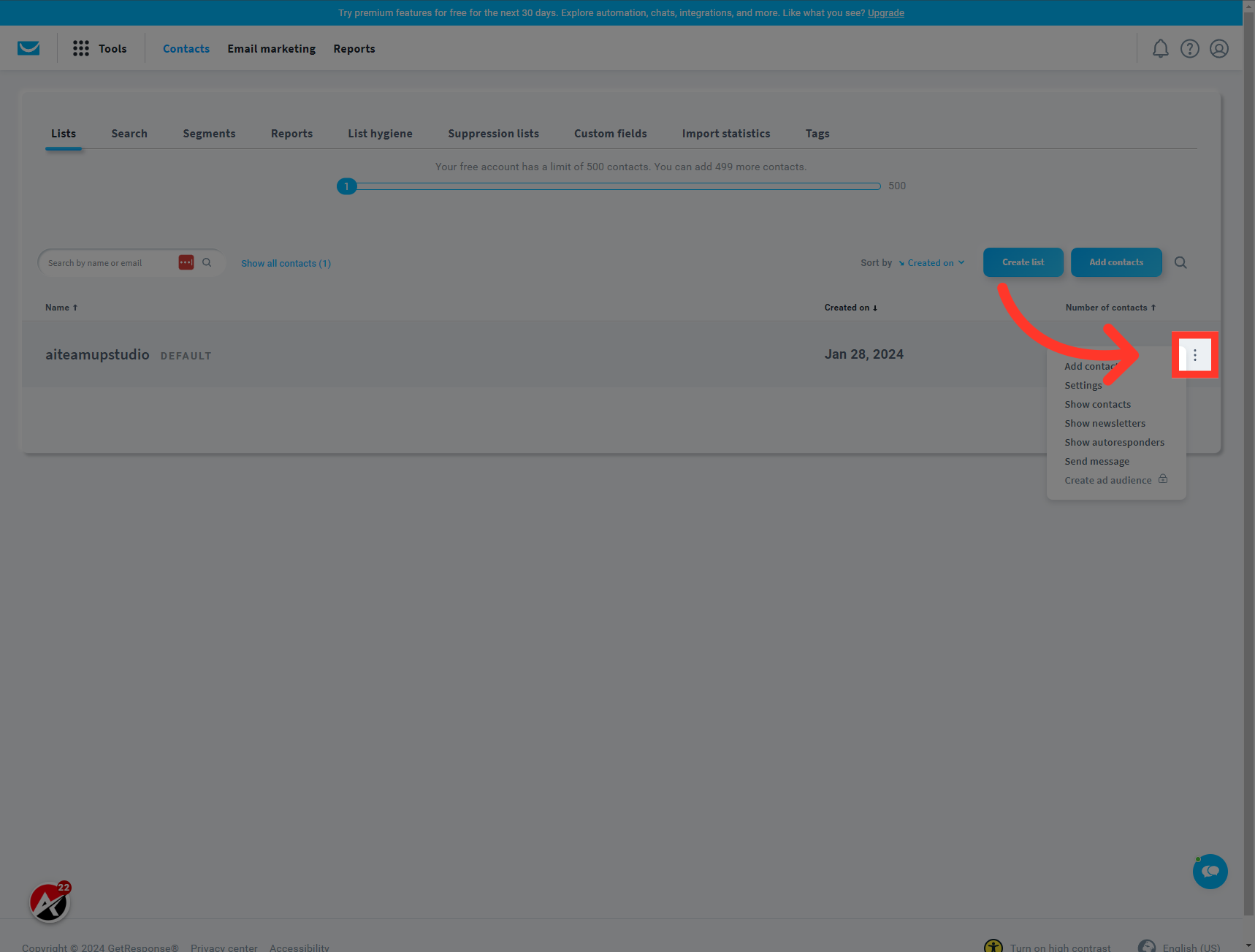
18. Click "Settings"
Choose the "Settings" option.
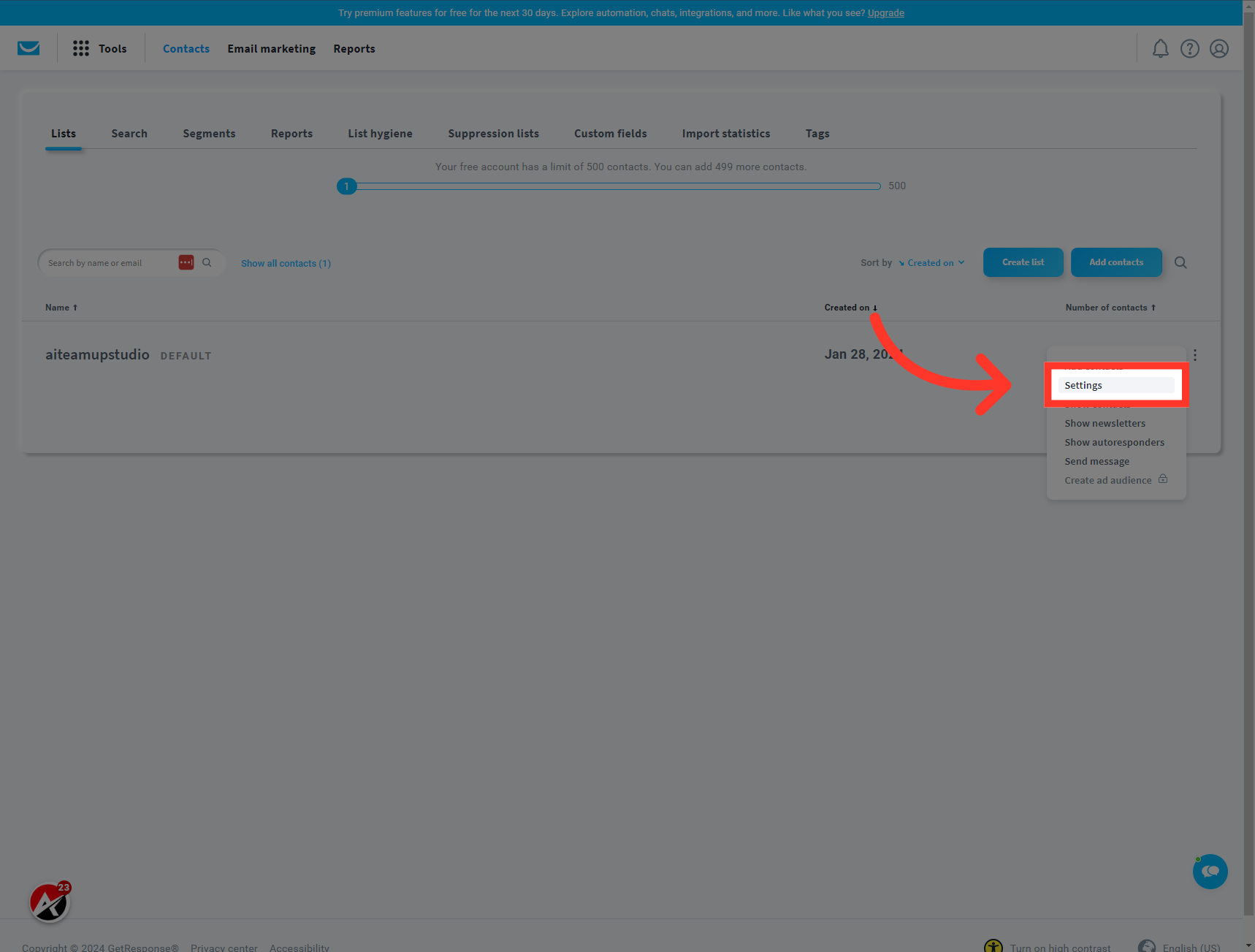
19. Click below the List name text. And copy the List ID from there.
Click below the List name text. And copy the List ID from there.
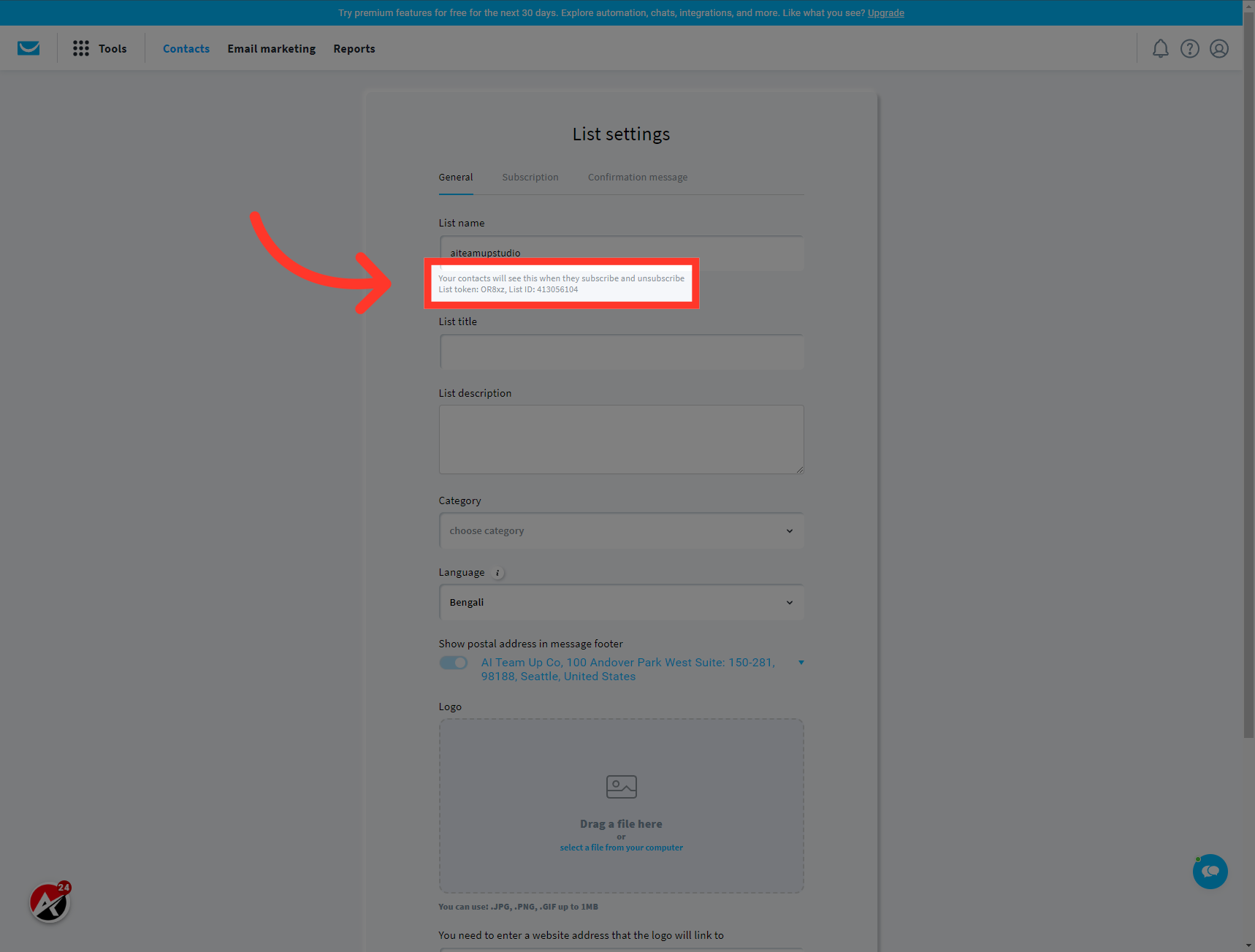
20. Switch to "aiteamup.com"
Switch back to the AI Team Up again.
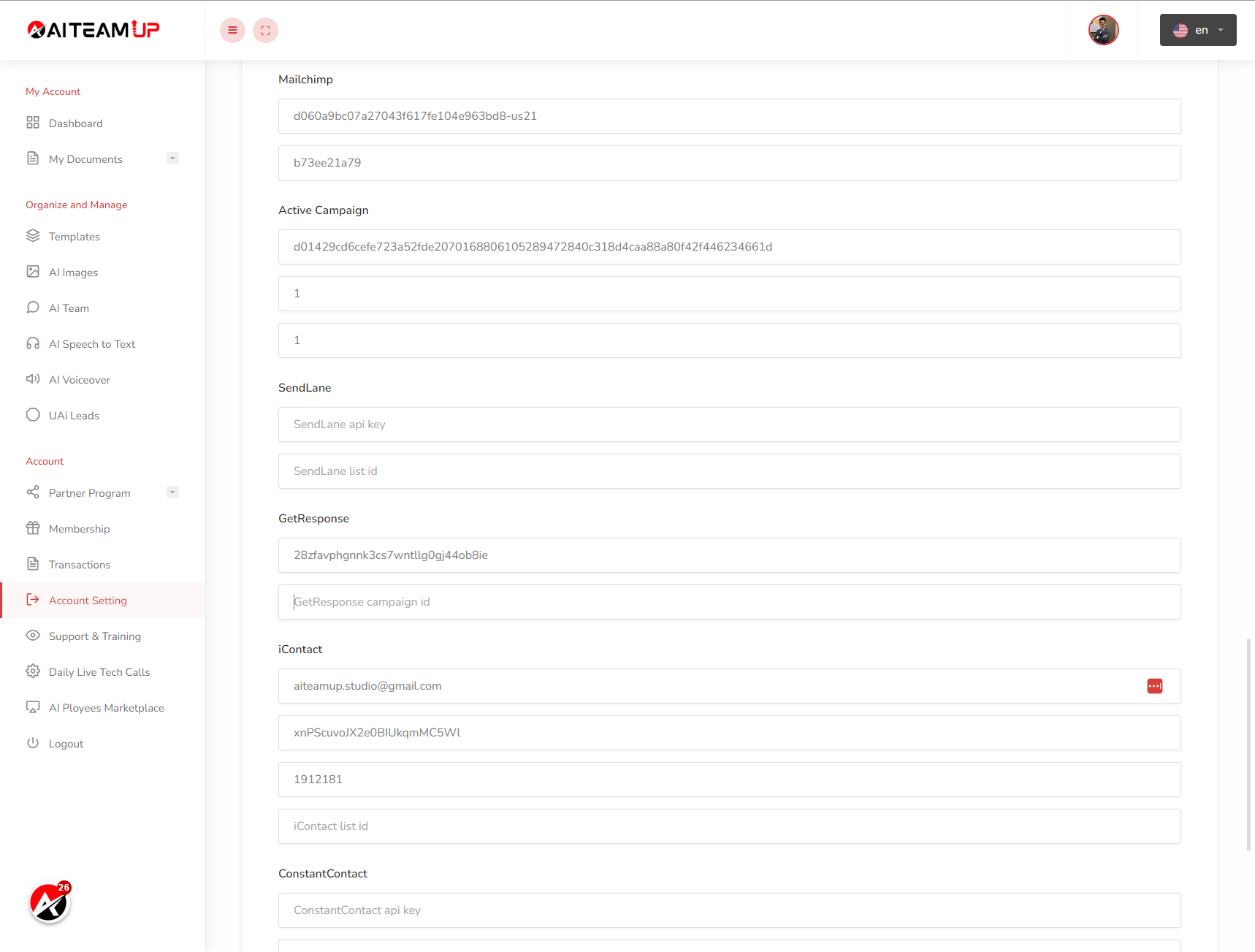
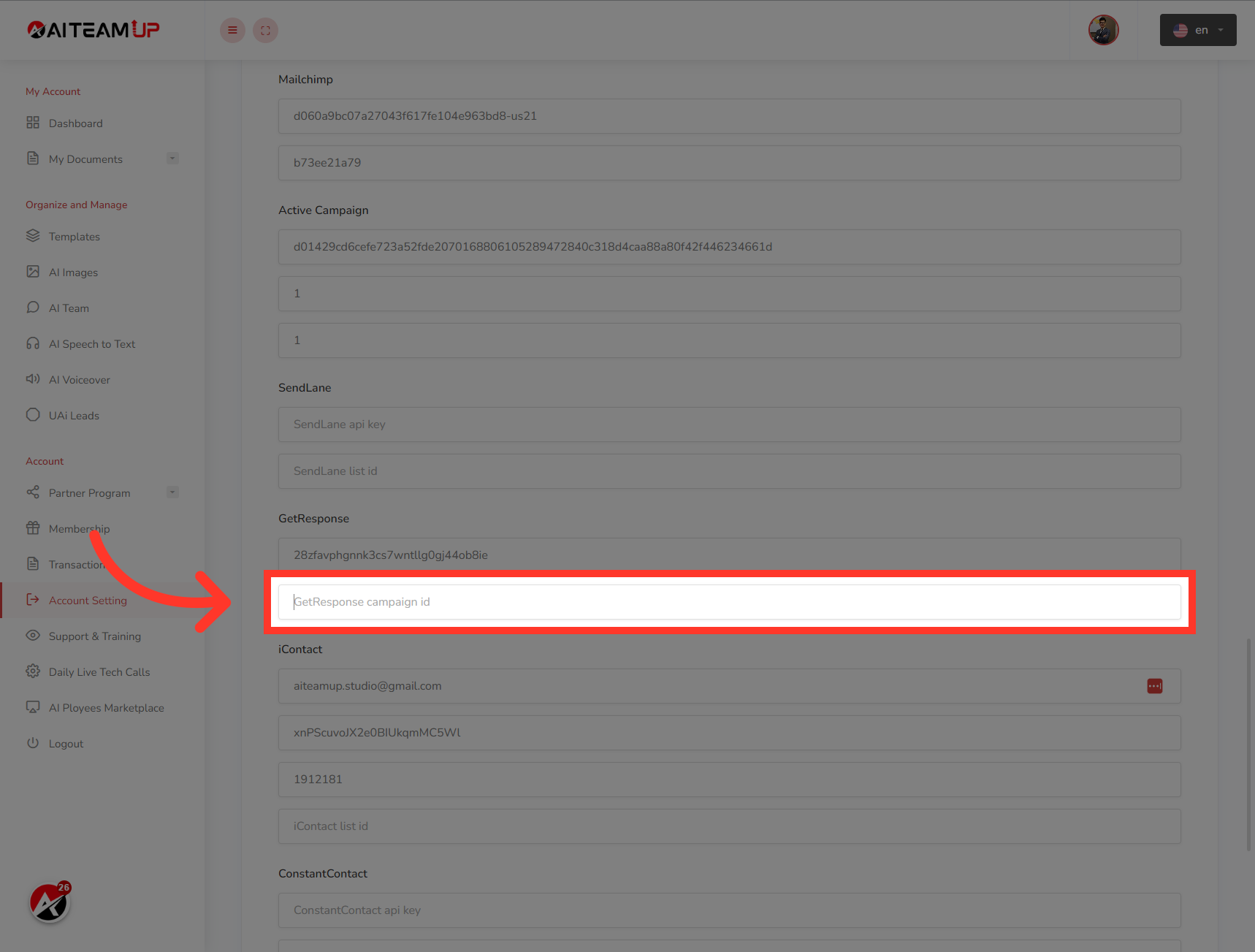
21. Click on the "GetResponse campaign ID" field.
Click on the "GetResponse campaign ID" field.
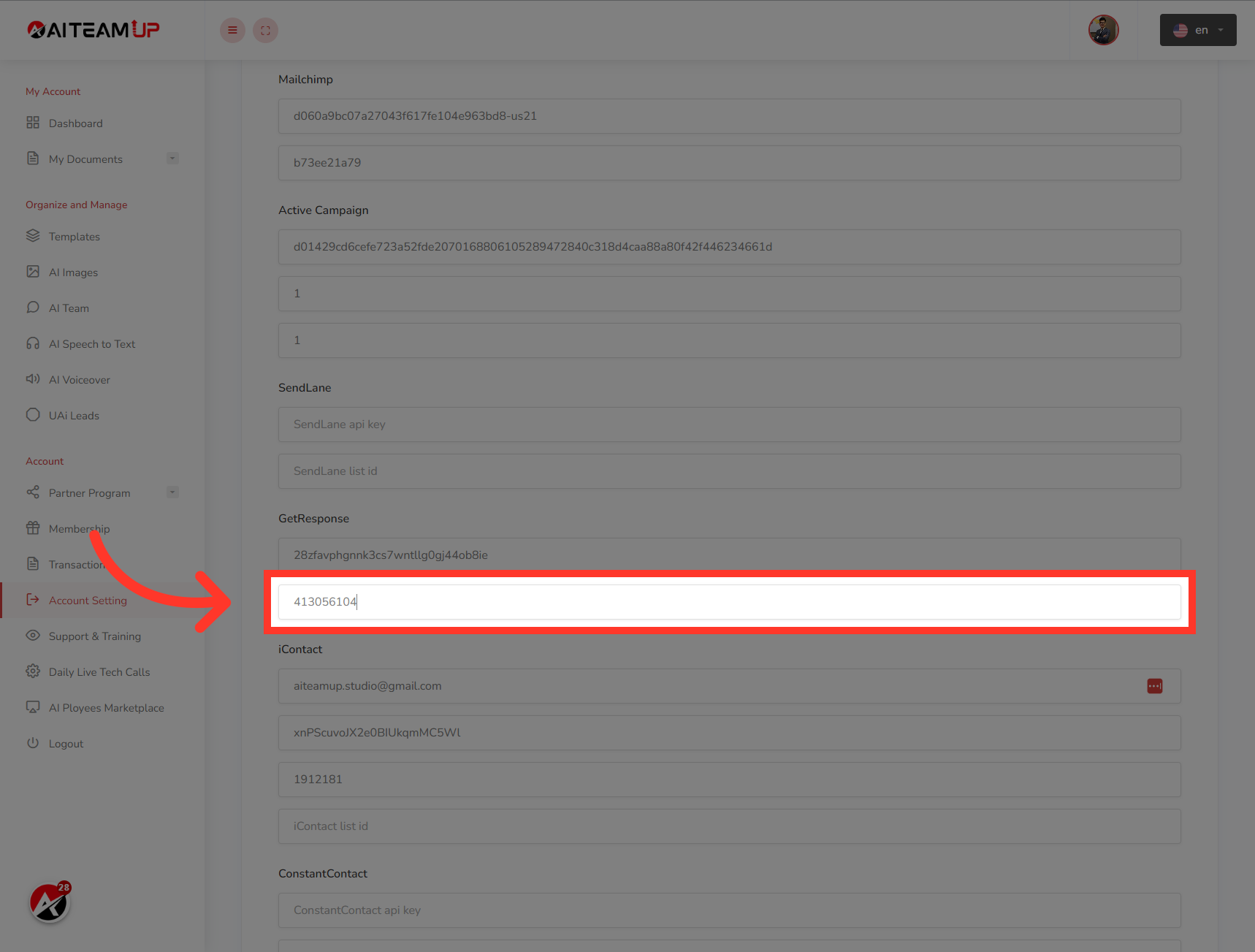
22. Enter the campaign ID you copied from GetResponse earlier.
Enter the campaign ID you copied from GetResponse earlier.
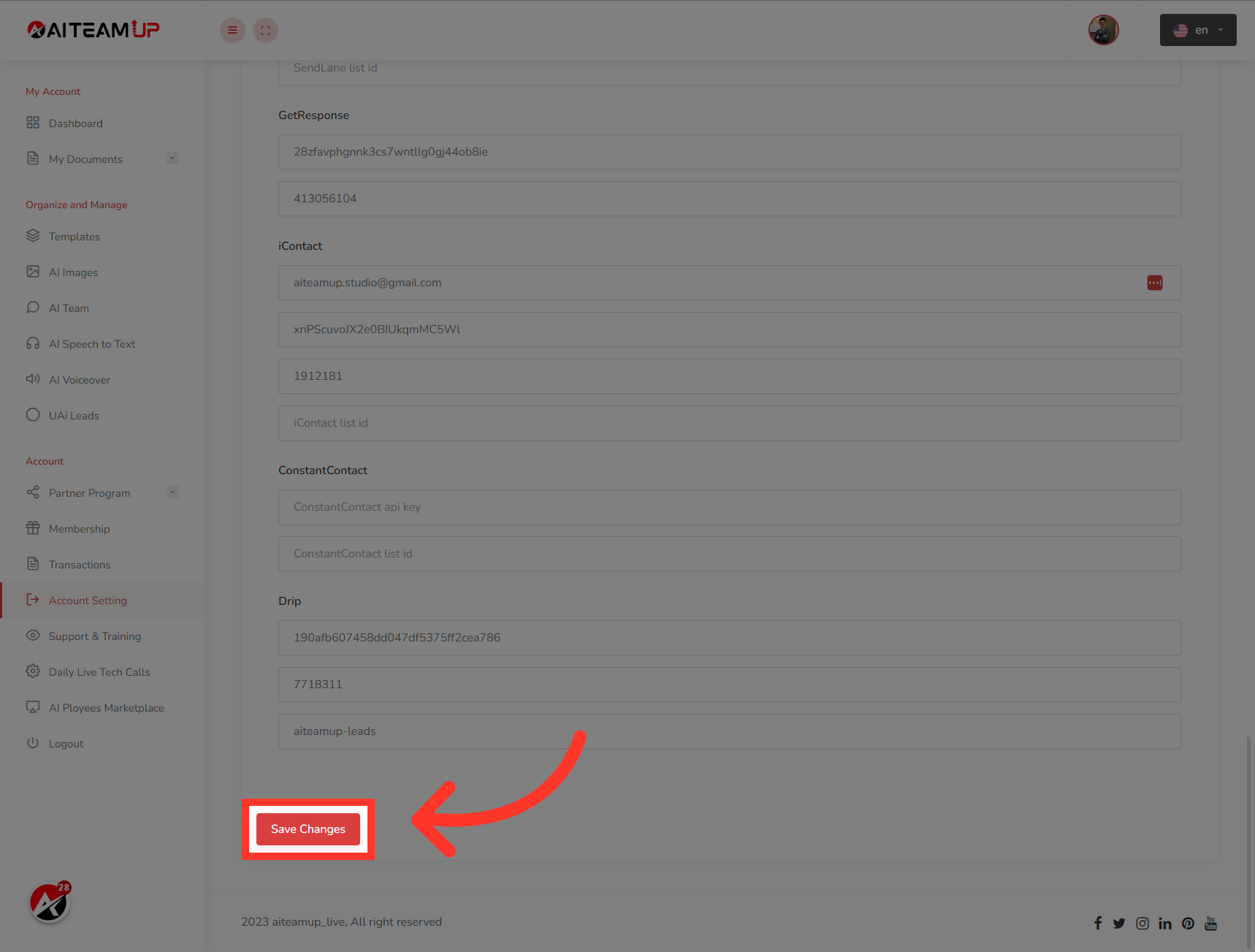
23. Click "Save Changes"
And that brings us to the final step. Simply click the 'Save Changes' button, and you're ready to begin gathering leads whenever someone interacts with your custom conversation bot. Happy collecting!
Thank you for watching, see you in the next video.

AI Team Up
AI Team Up