
 ENGLISH (US)
 ESPAÑOL
How to embed UAI lead agent on Wordpress website
Learn how to embed the UAI lead agent on your Wordpress website using the AI team up and Groundedgrowthpartners applications. Follow these steps to seamlessly integrate the AI agent into your site and enhance your user experience.
Go to aiteamup.com
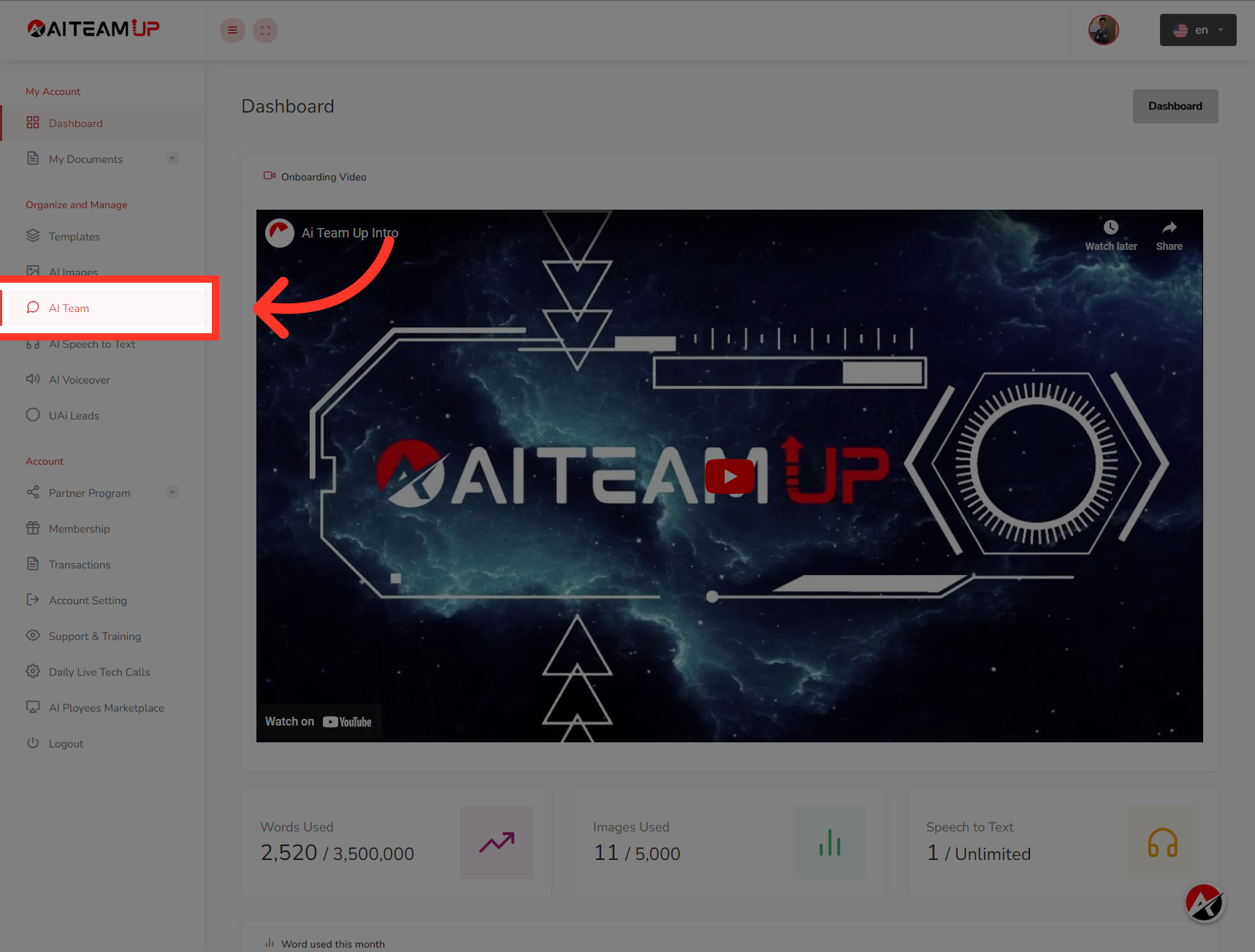
1. Click "AI Team"
Login to your AI Team Up dashboard and then navigate to the the "AI Team" section from the left menu.
2. Click "UAi Agent"
Select the "UAi Agent" option.

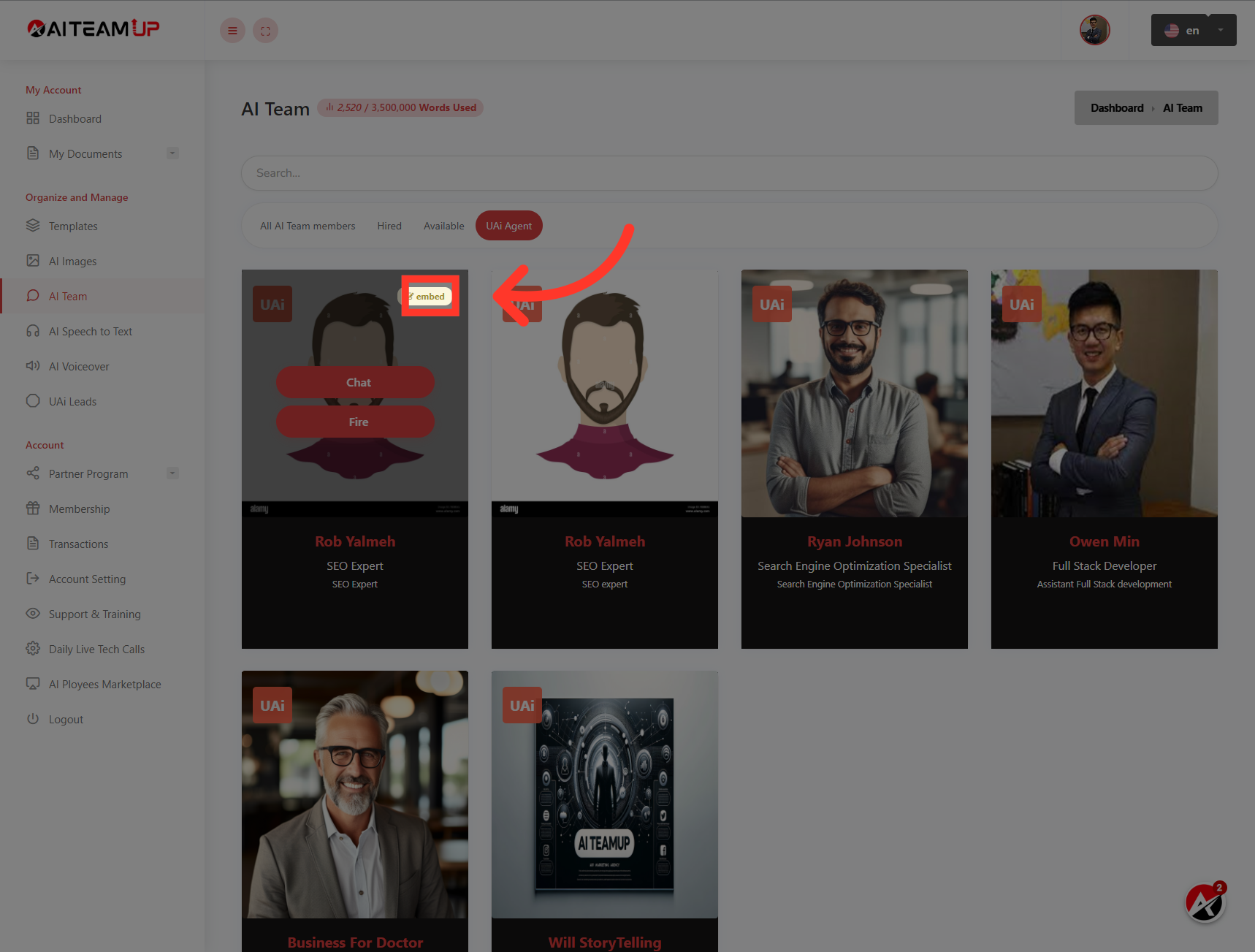
3. Click "embed"
Select the UAI lead agent that you want to embed on your website and Choose the "embed" button to generate the embed codes.
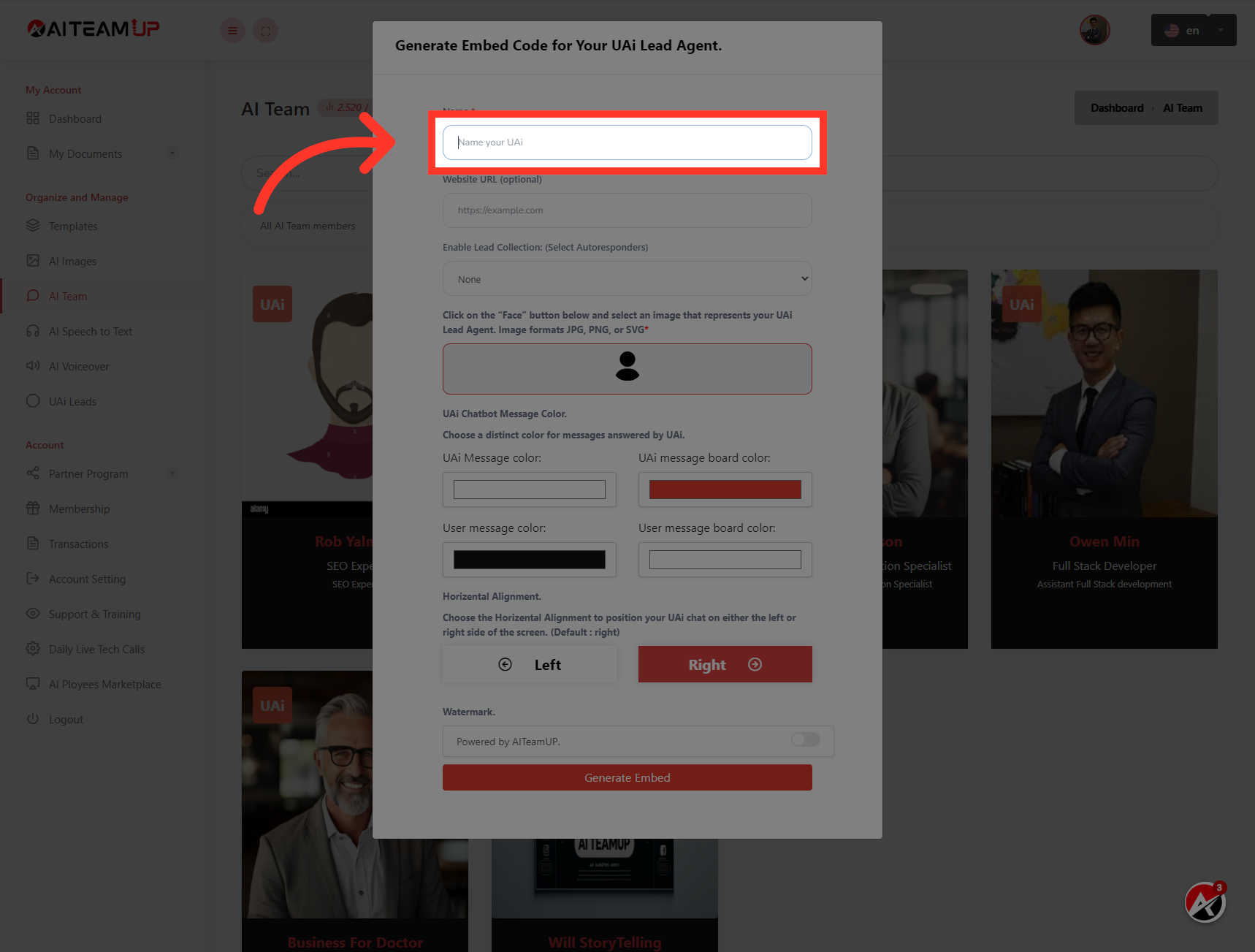
4. Provide a name for your UAi lead agent.
Provide a name for your UAi lead agent.
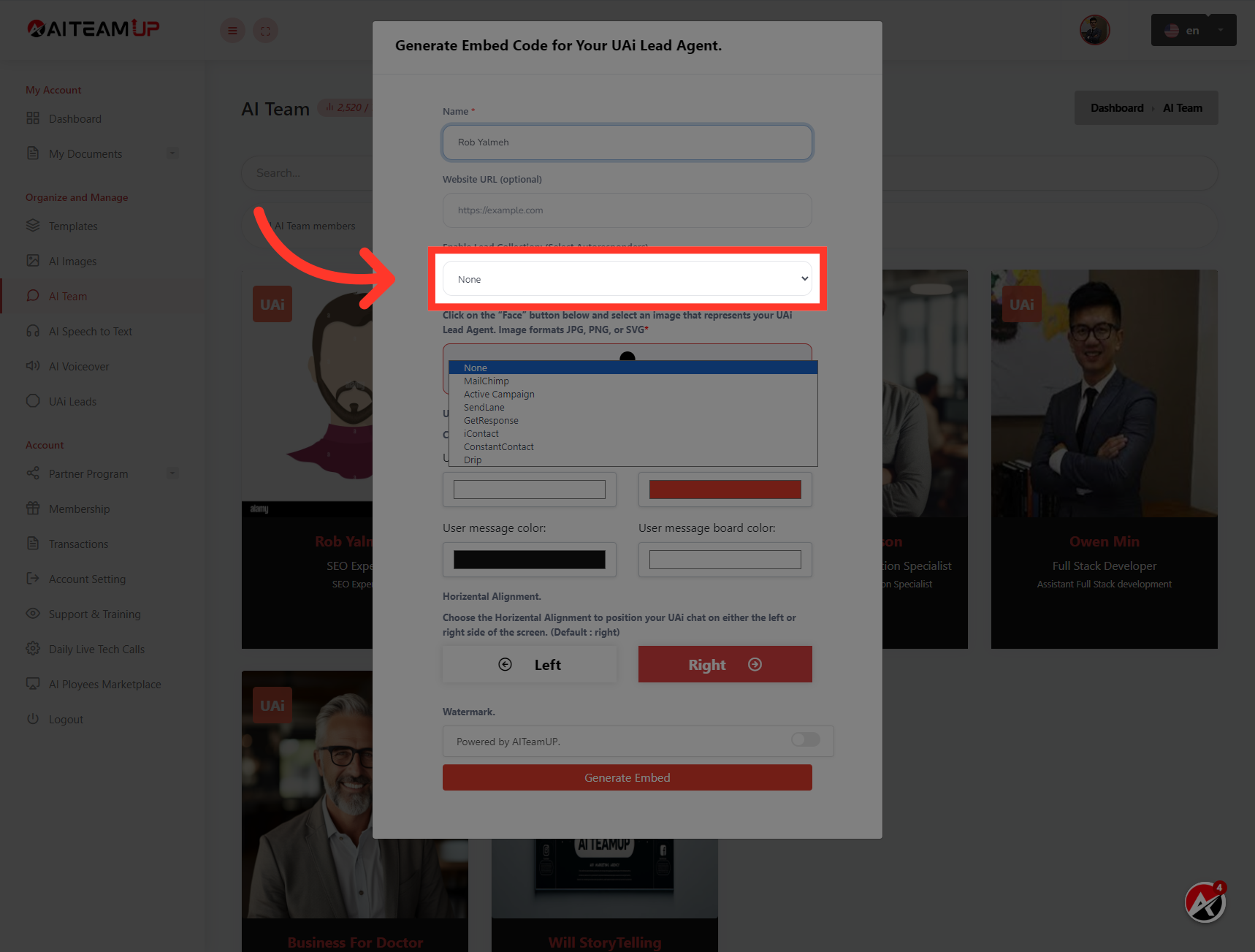
5. Select the desired auto-responder integration from the list provided.
Select the desired auto-responder integration from the list provided.
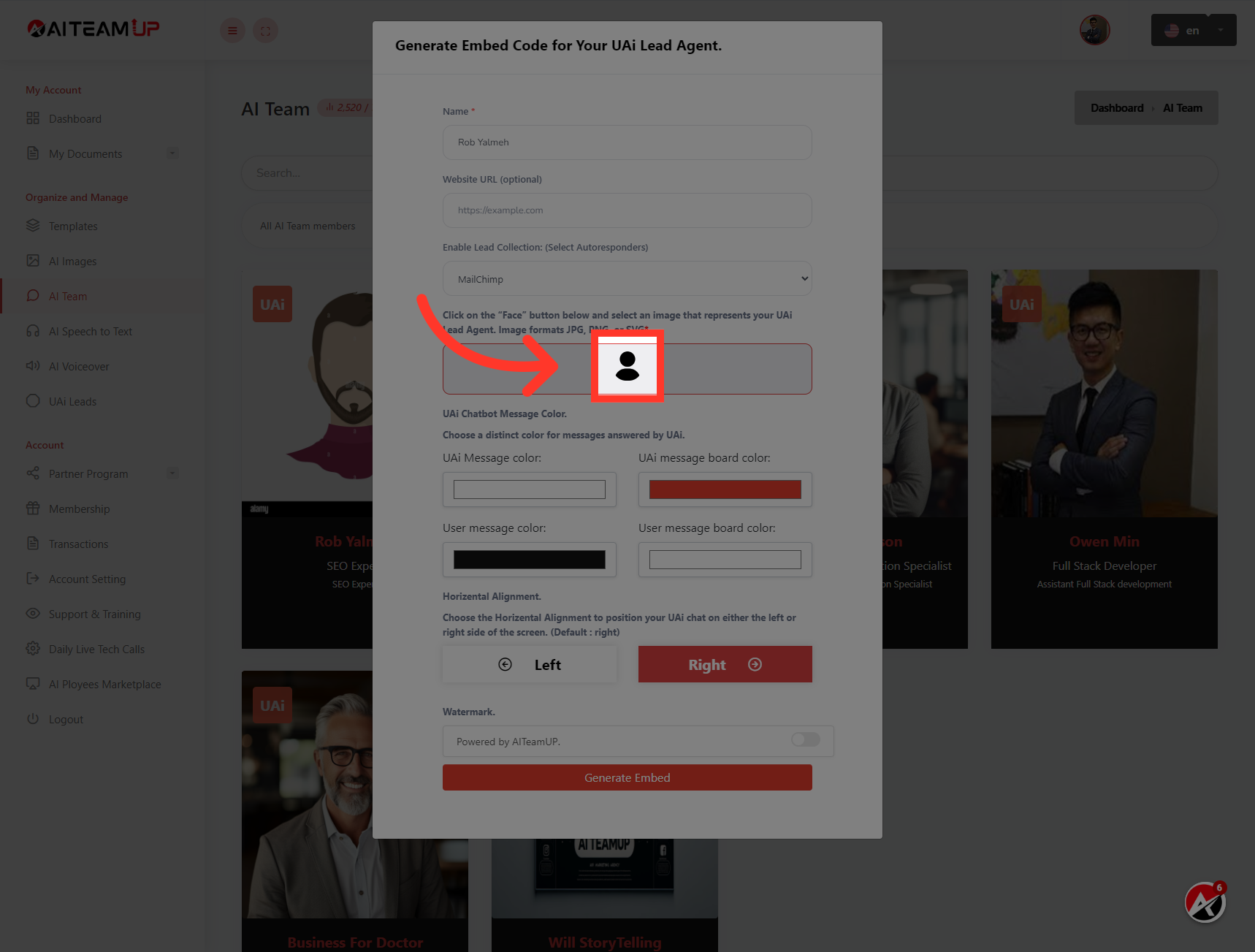
6. Click here
Upload an image for the UAI lead agent that will appear on your website.
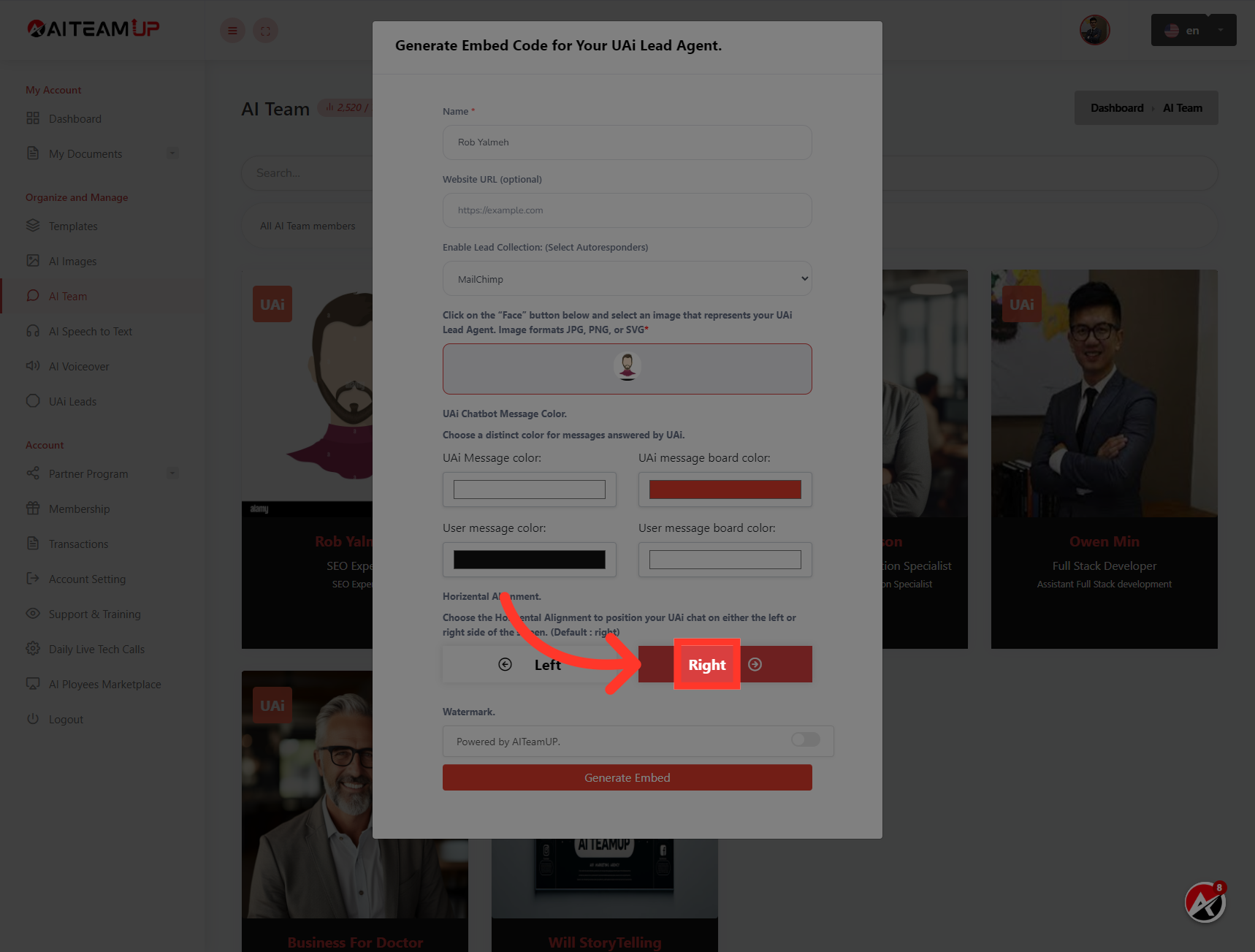
7. Adjust the appearance and position of the UAI lead agent as you like.
Adjust the appearance and position of the UAI lead agent as you like.
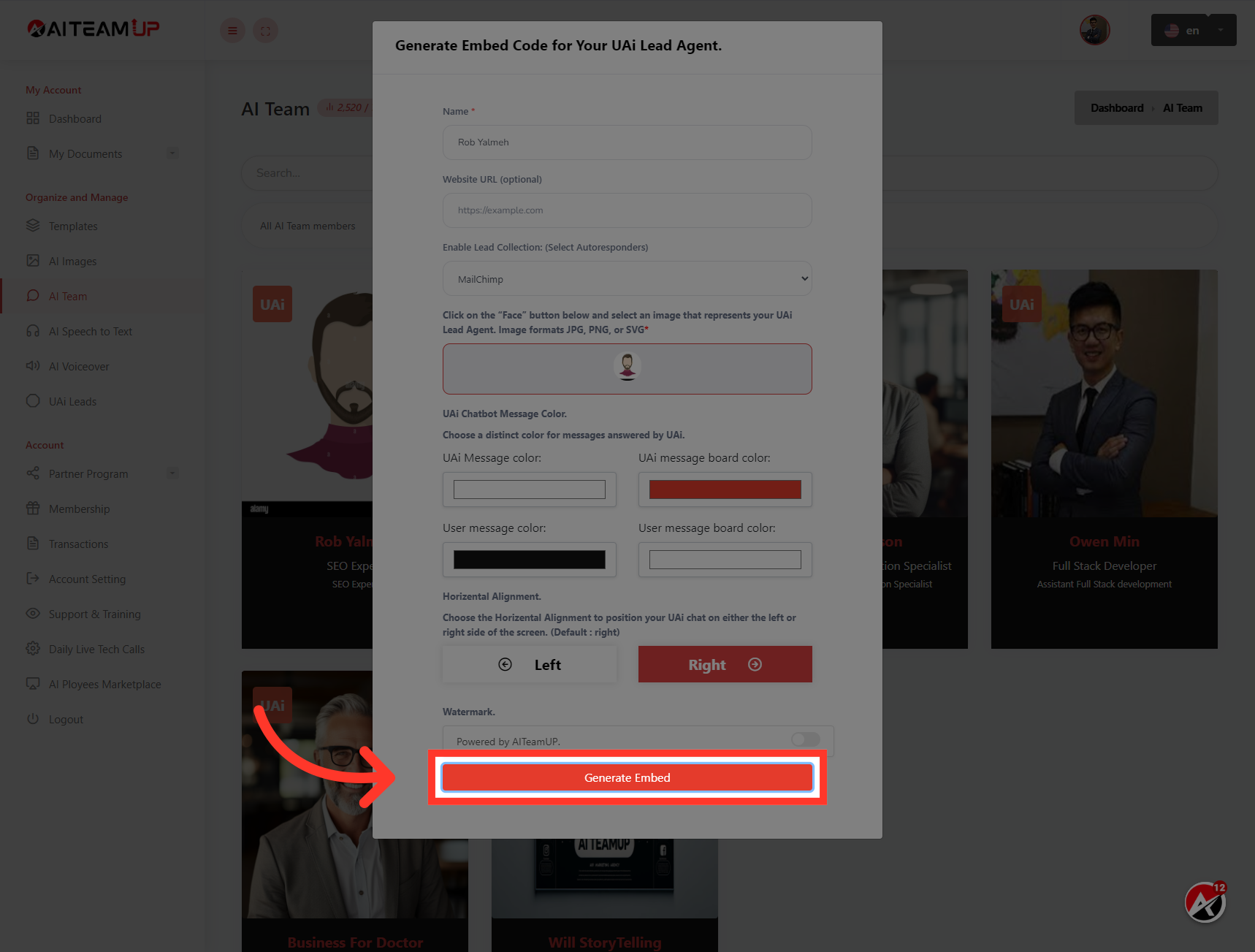
8. Click "Generate Embed"
After that, click on Generate the embed code.
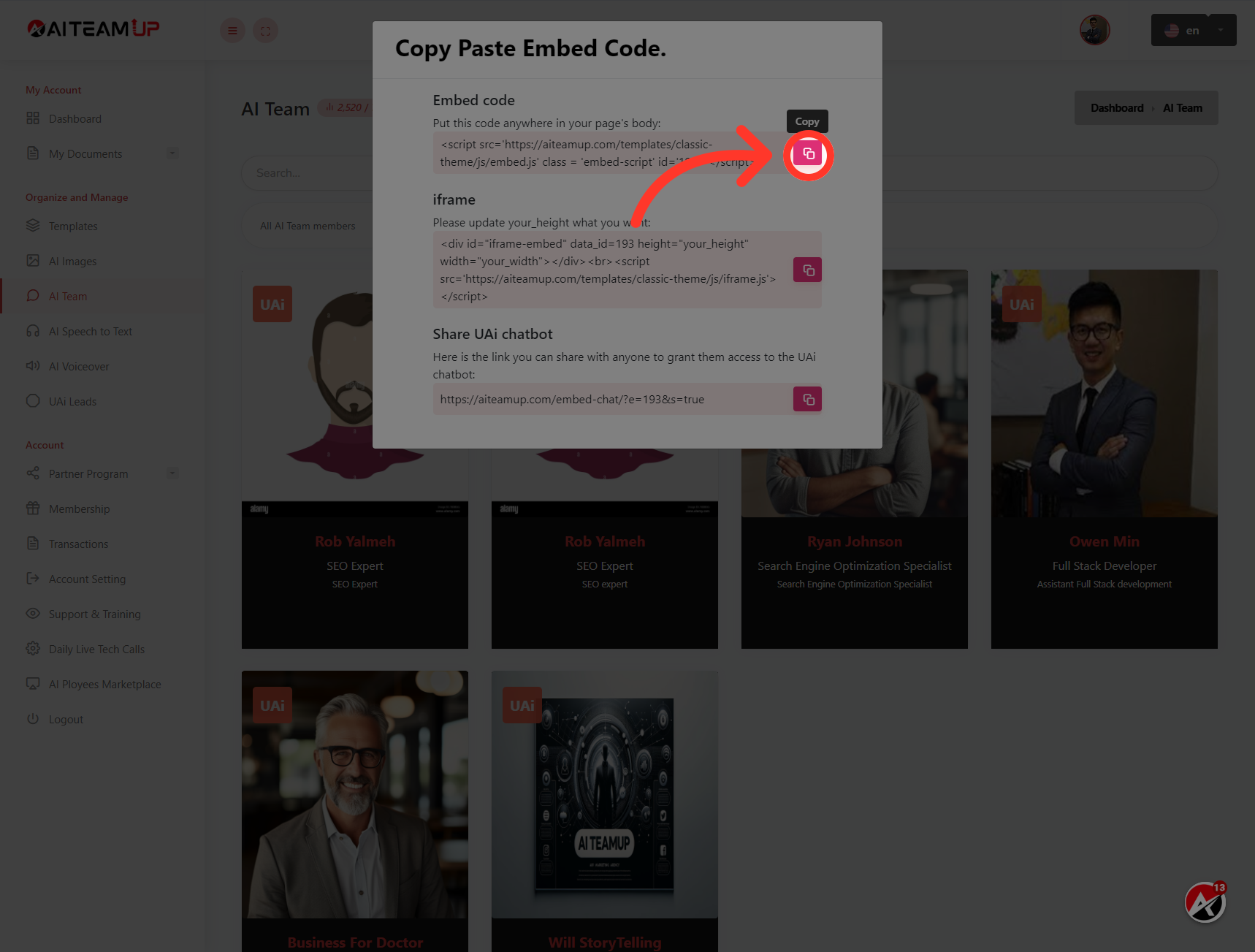
9. Click on this button to copy the generated embed codes.
Click on this button to copy the generated embed codes.
10. Switch to "groundedgrowthpartners.com"
Now login to your WordPress website admin panel.
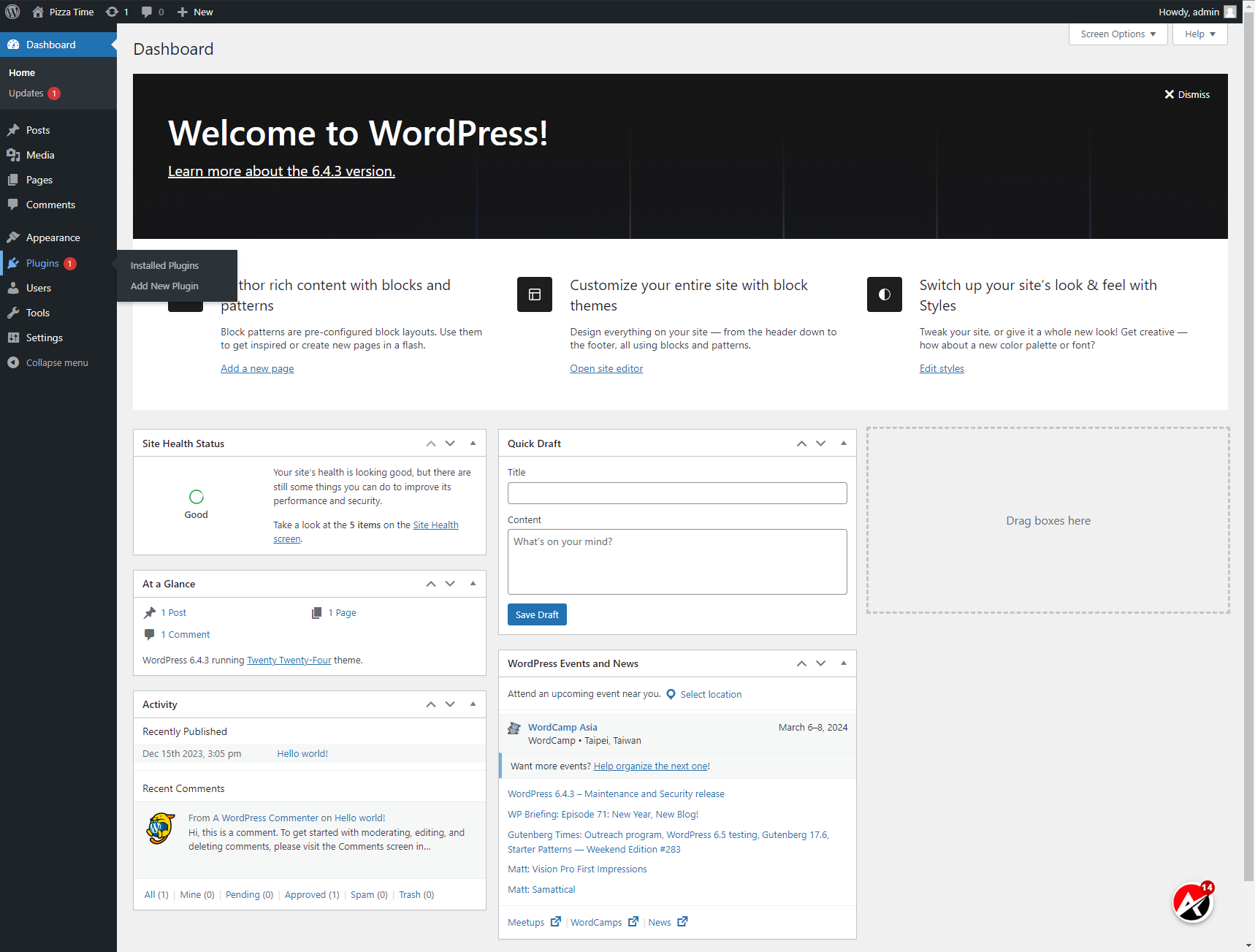
11. Click on the Plugins option from the left menu.
Click on the Plugins option from the left menu.
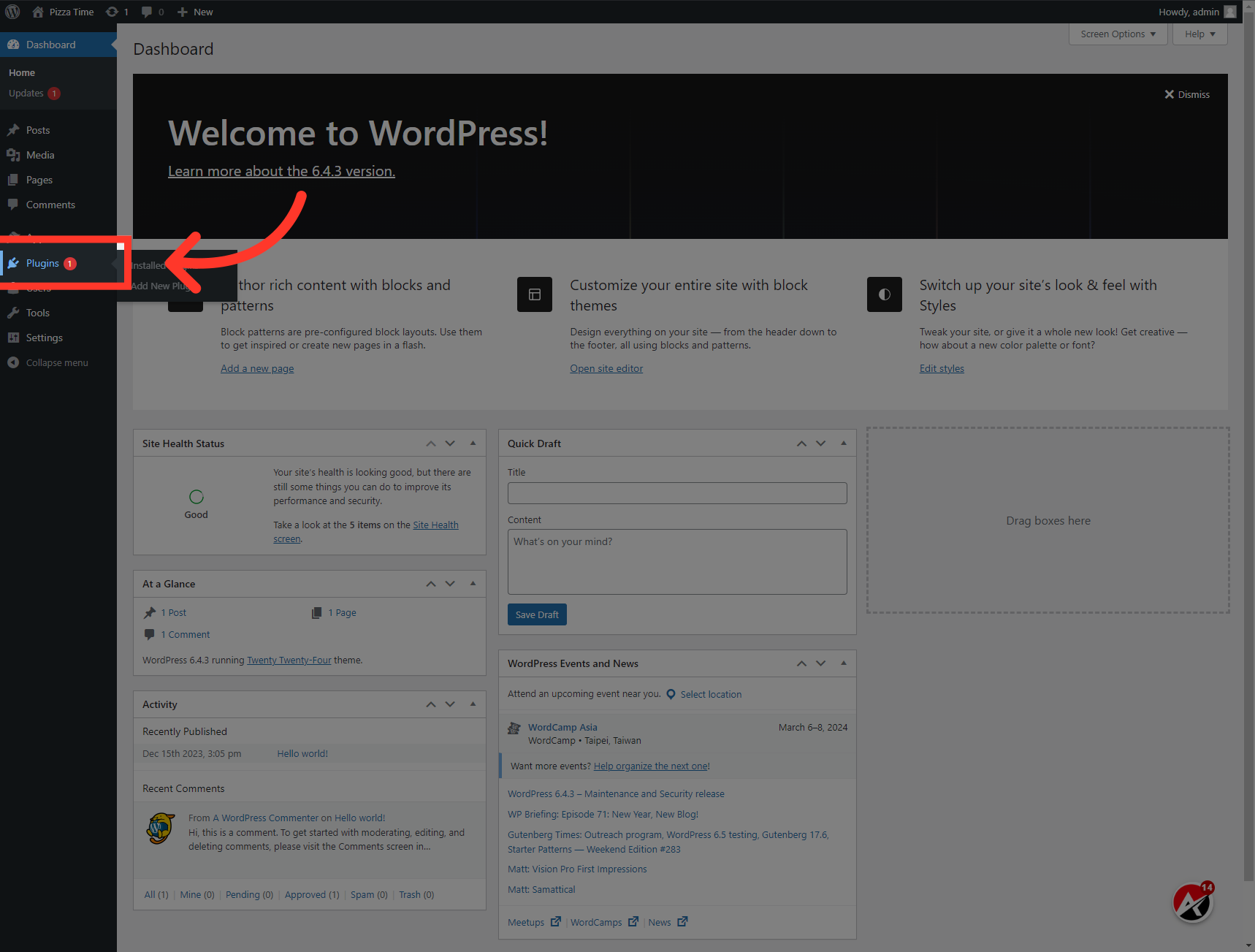
12. Click "Add New Plugin"
Select the "Add New Plugin" option.
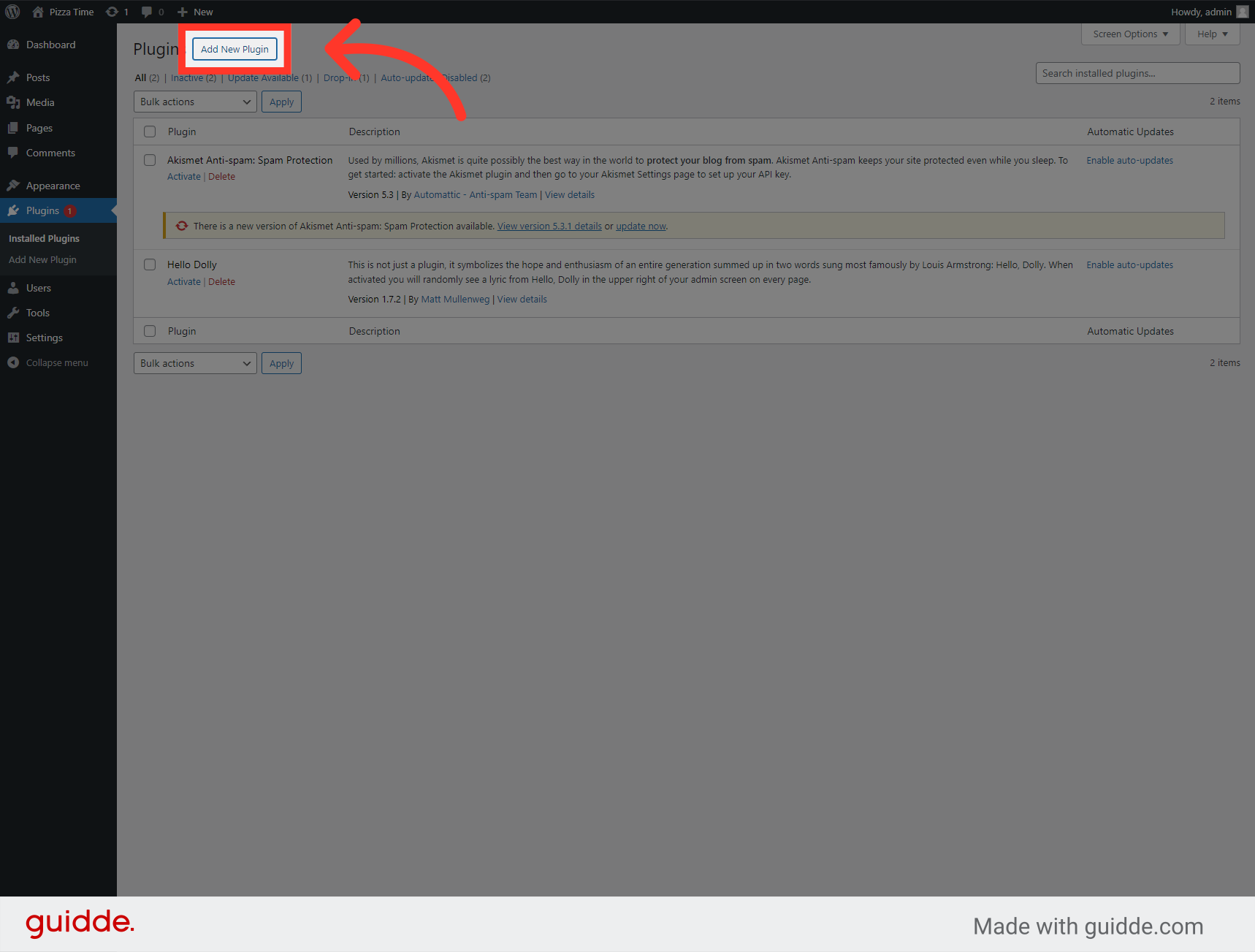
13. Click "Search plugins..."
Click on the search bar for plugins.
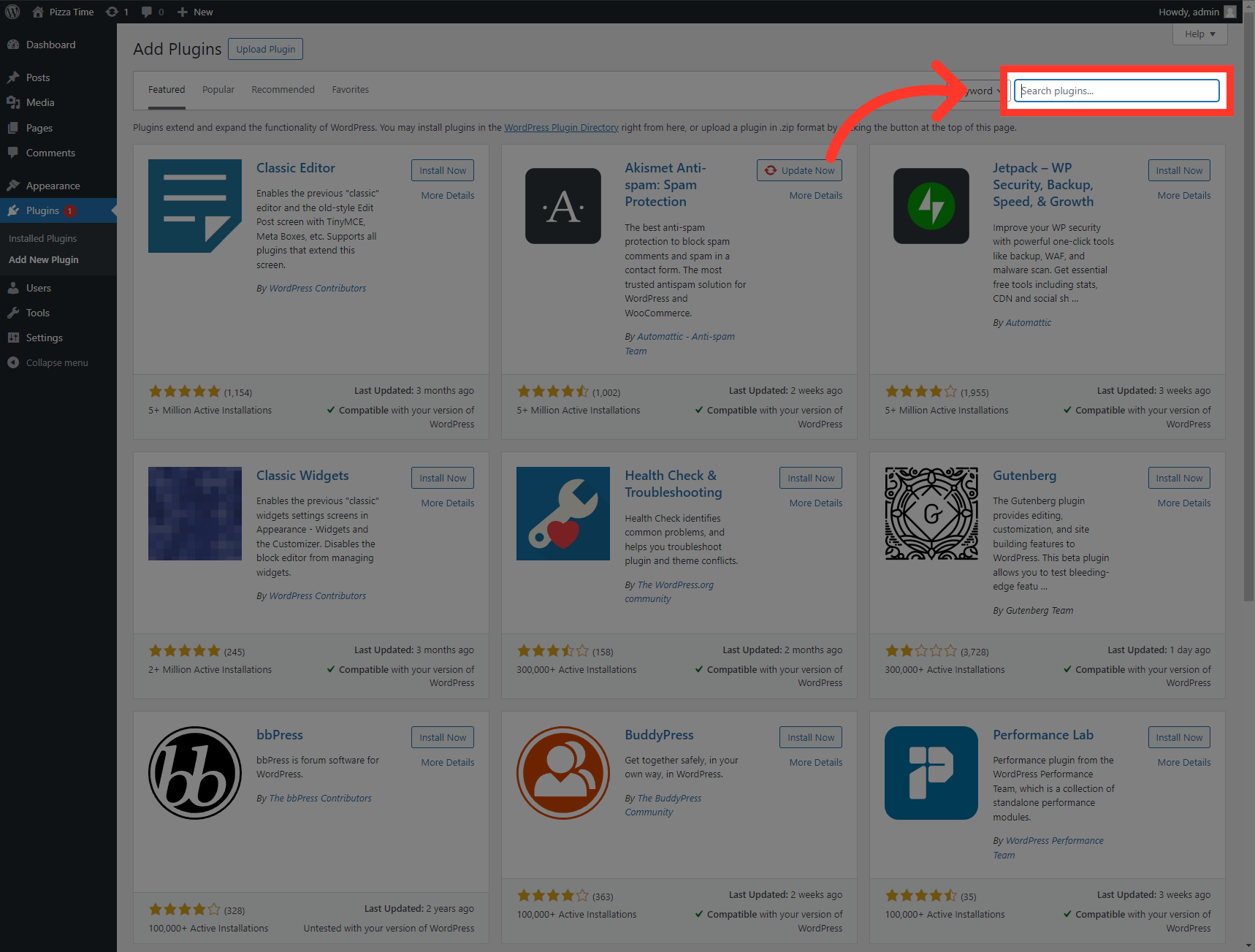
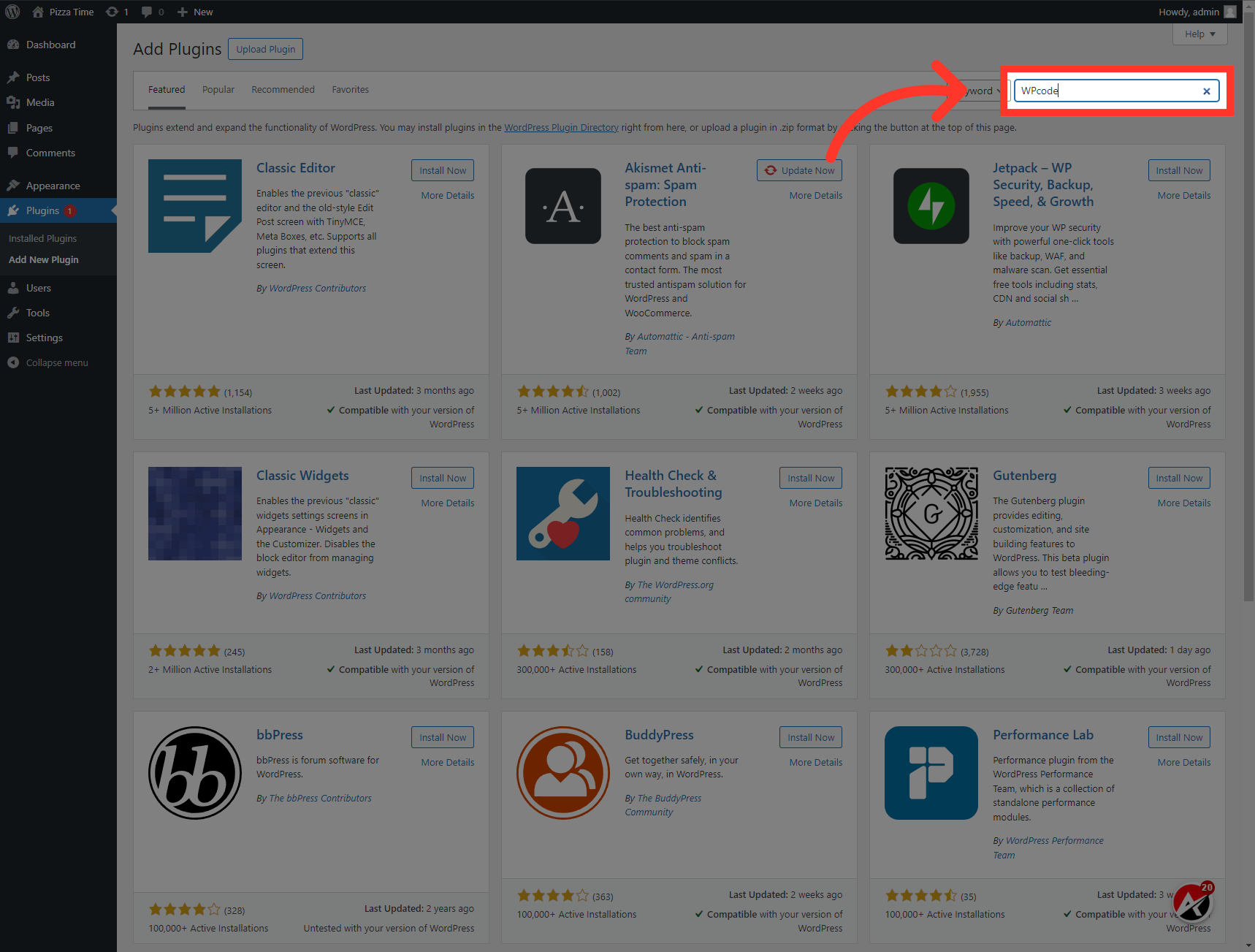
14. Fill "WPcode"
Enter "WPcode" as the search term.
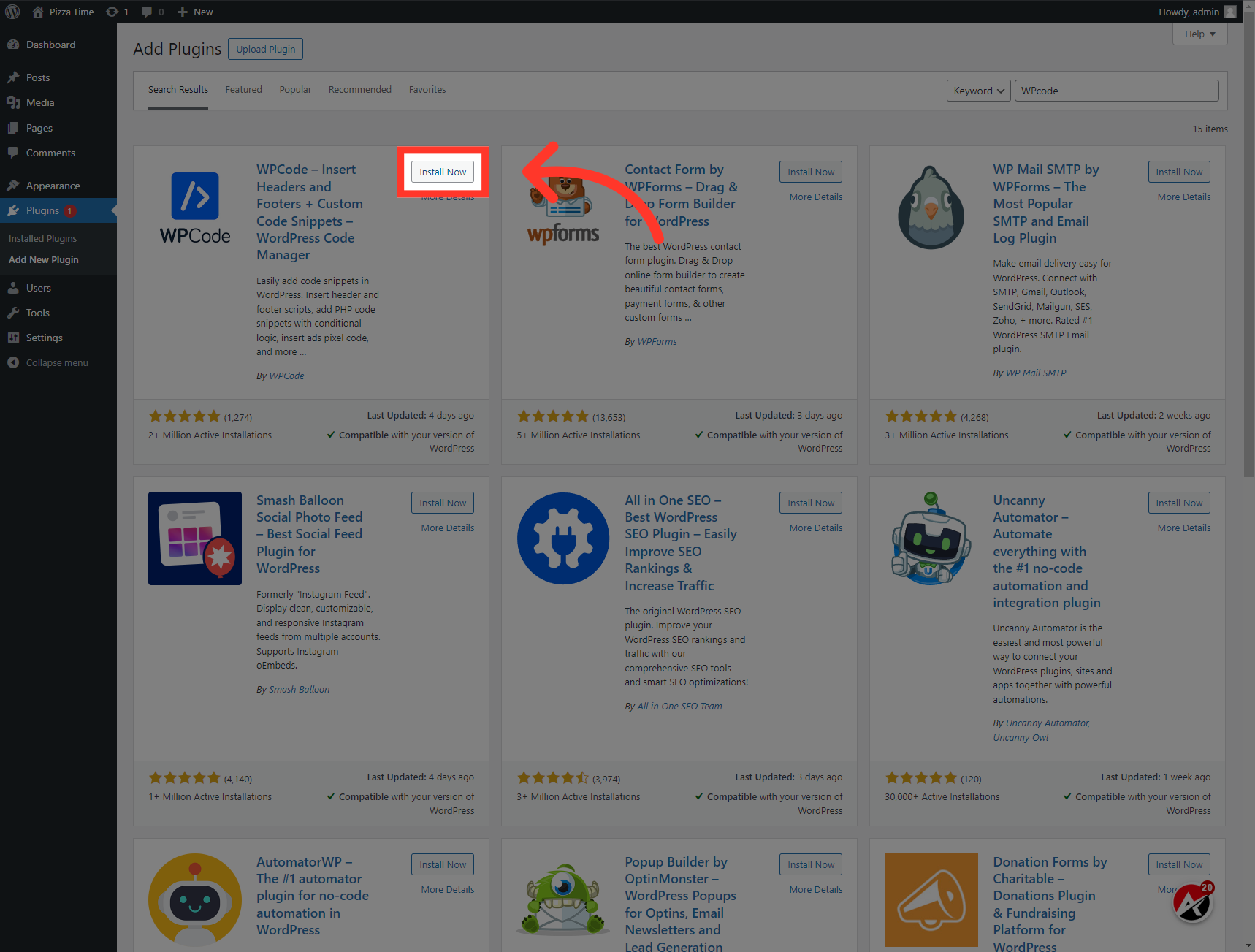
15. Click "Install Now"
Install the WP Code plugin to install the embed codes on your website.
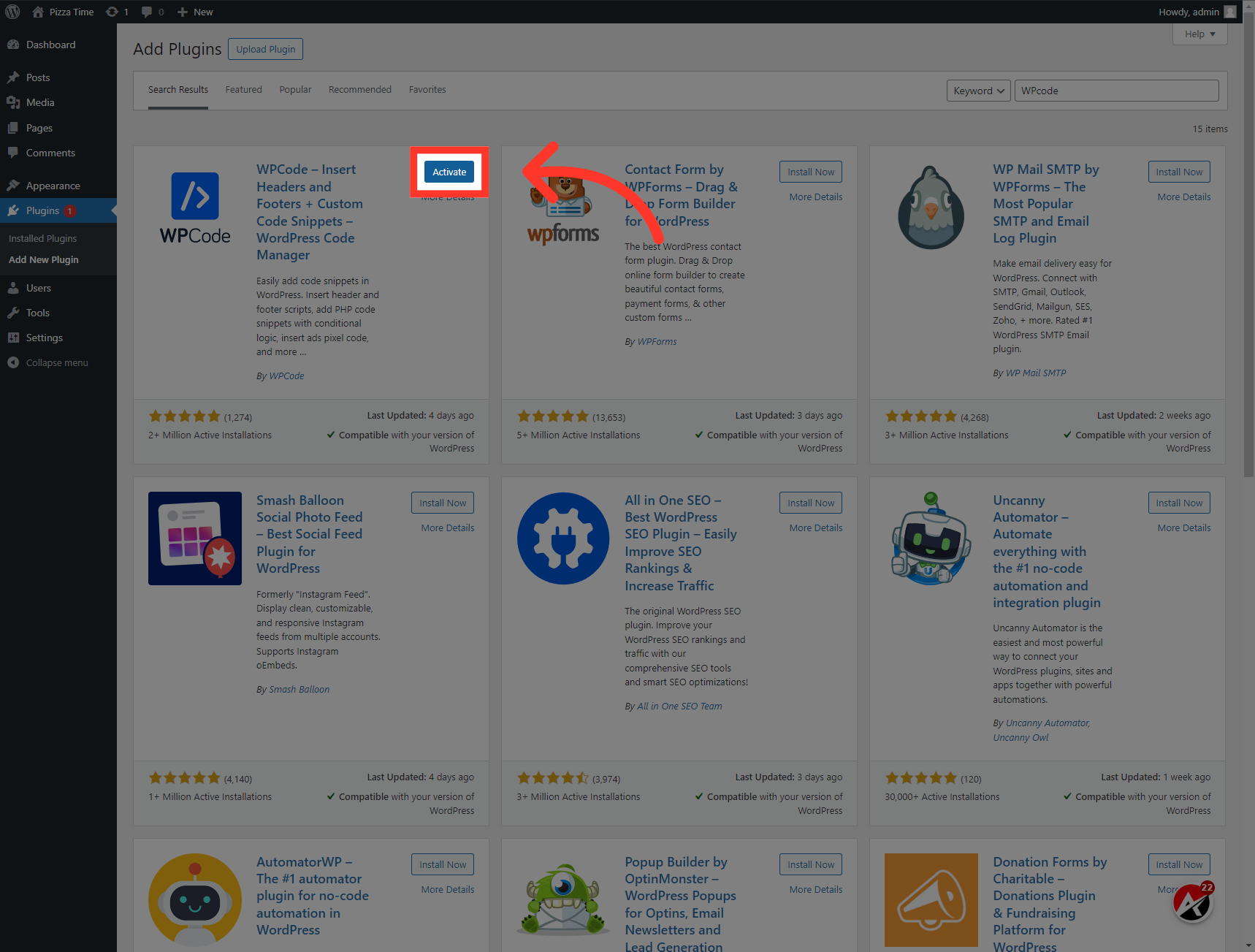
16. Click "Activate"
Click on the "Activate" button.
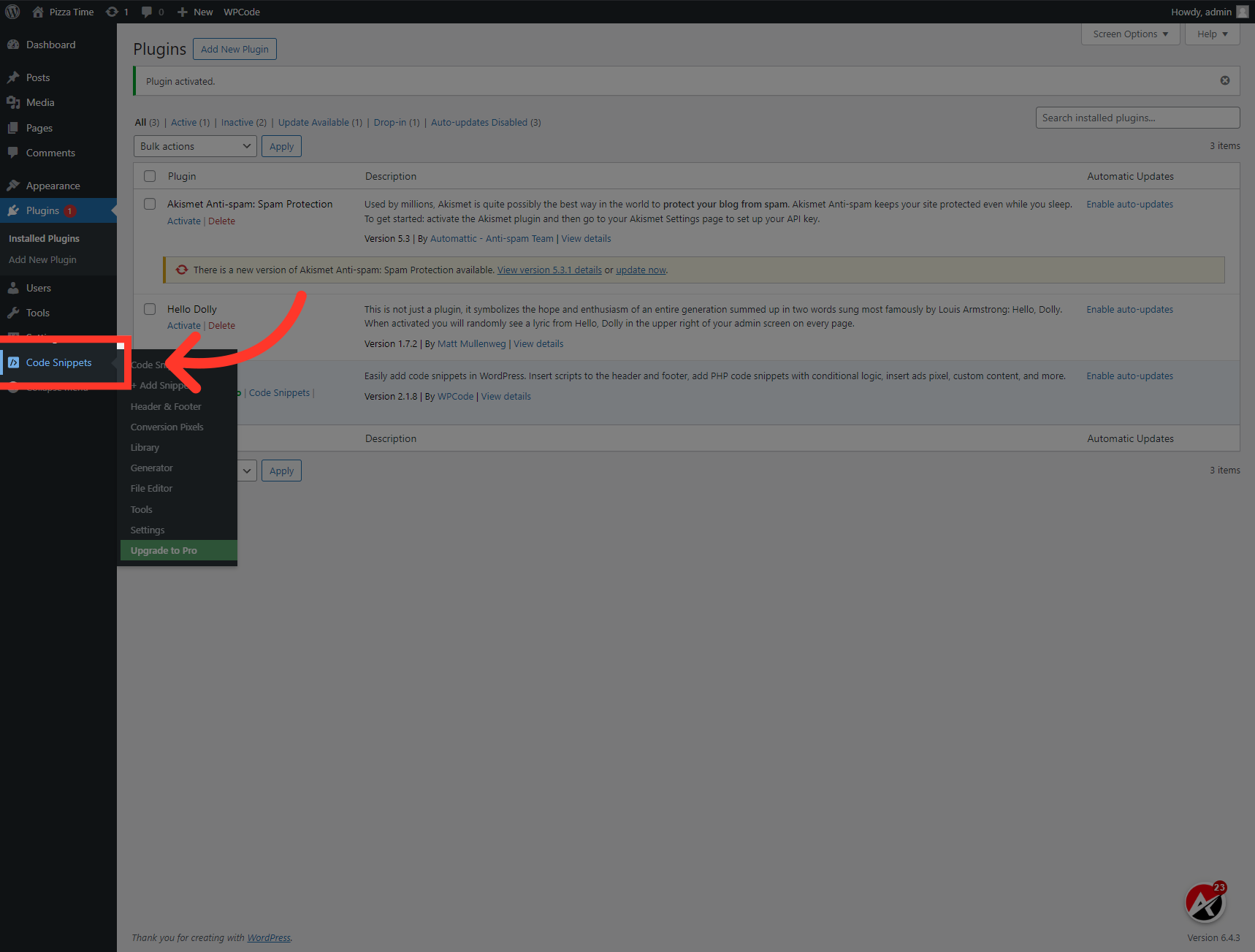
17. Click "Code Snippets"
Now Access the "Code Snippets" section from the left menu.
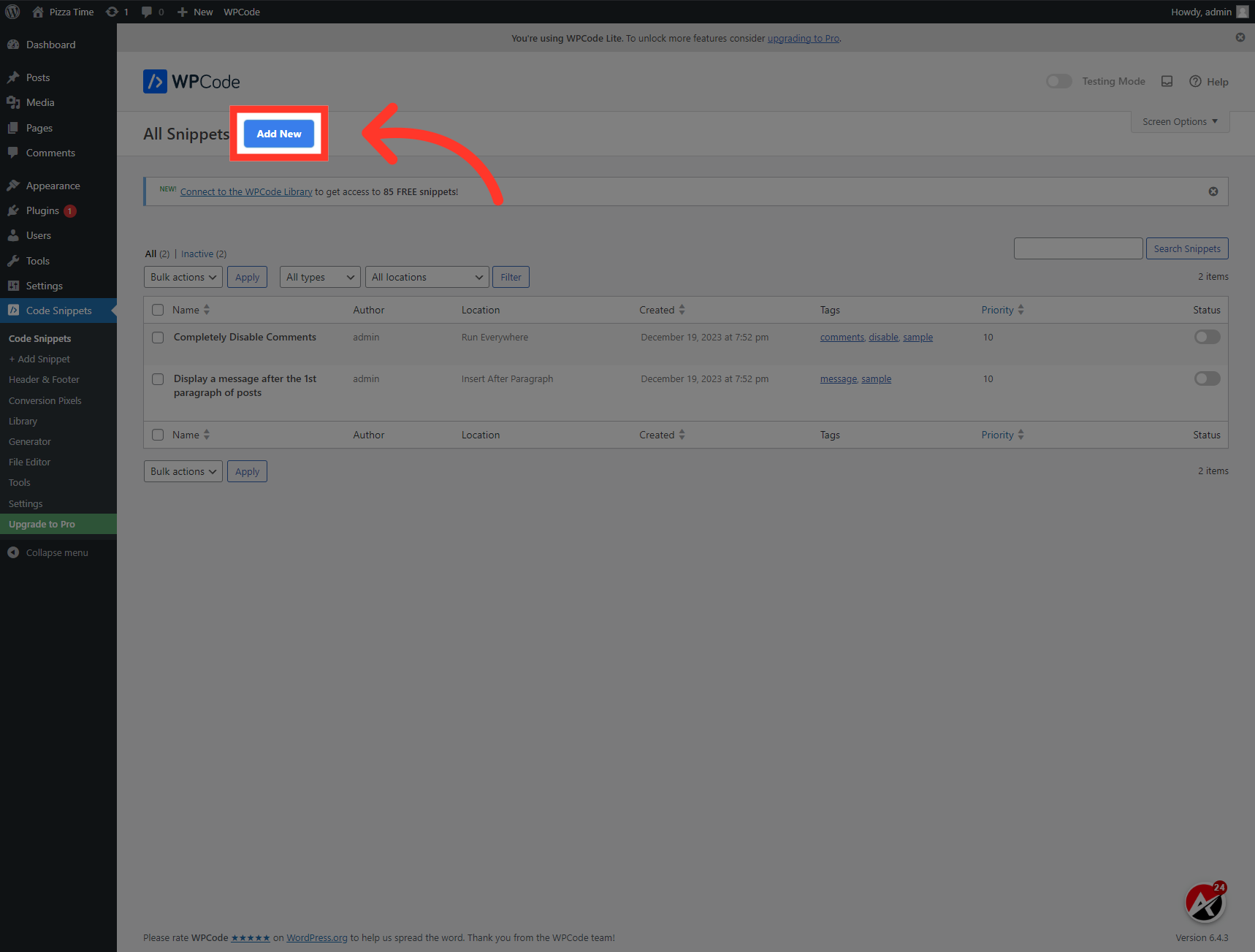
18. Click "Add New"
Select the "Add New" option.
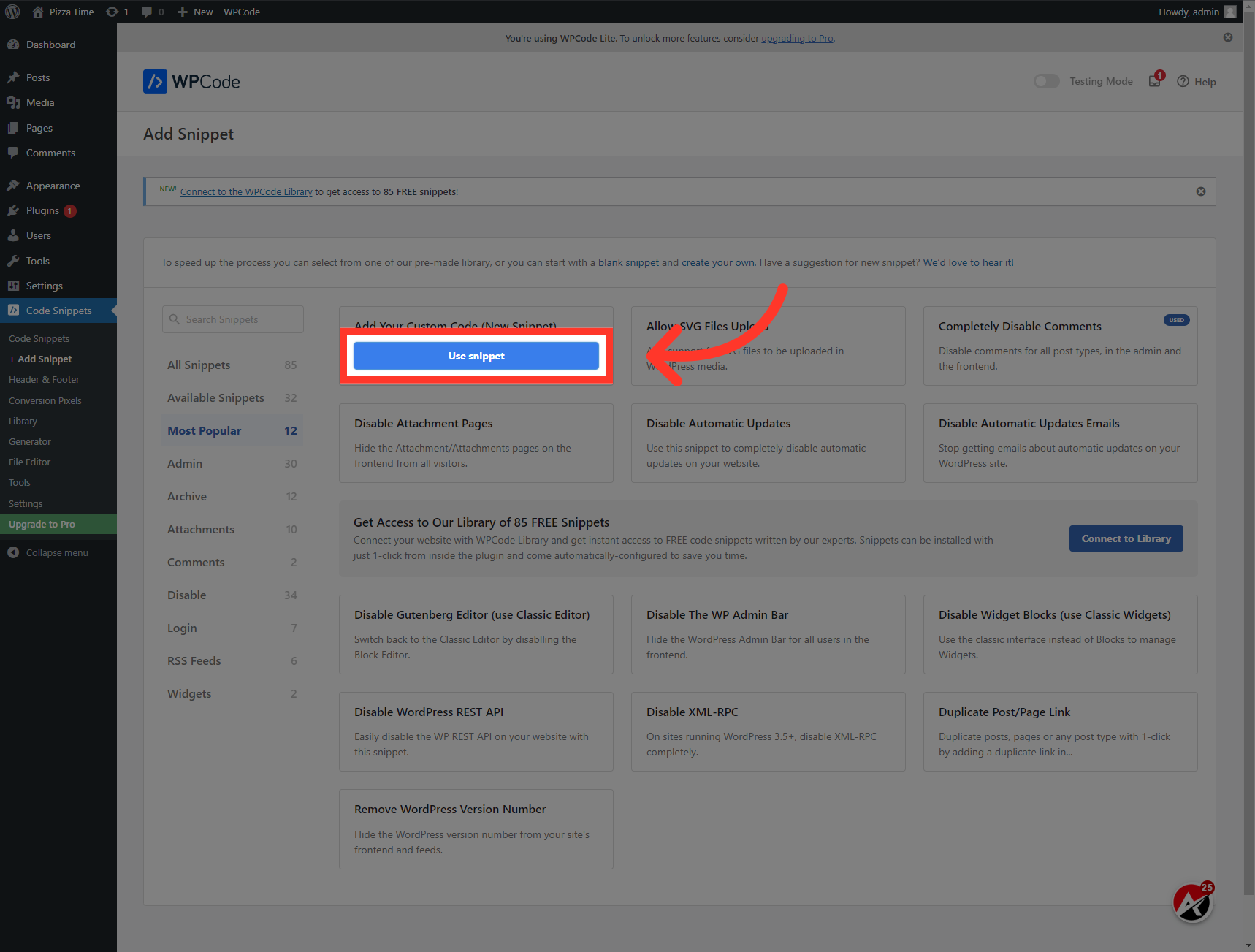
19. Click "Use snippet"
Choose the "Use snippet" feature.
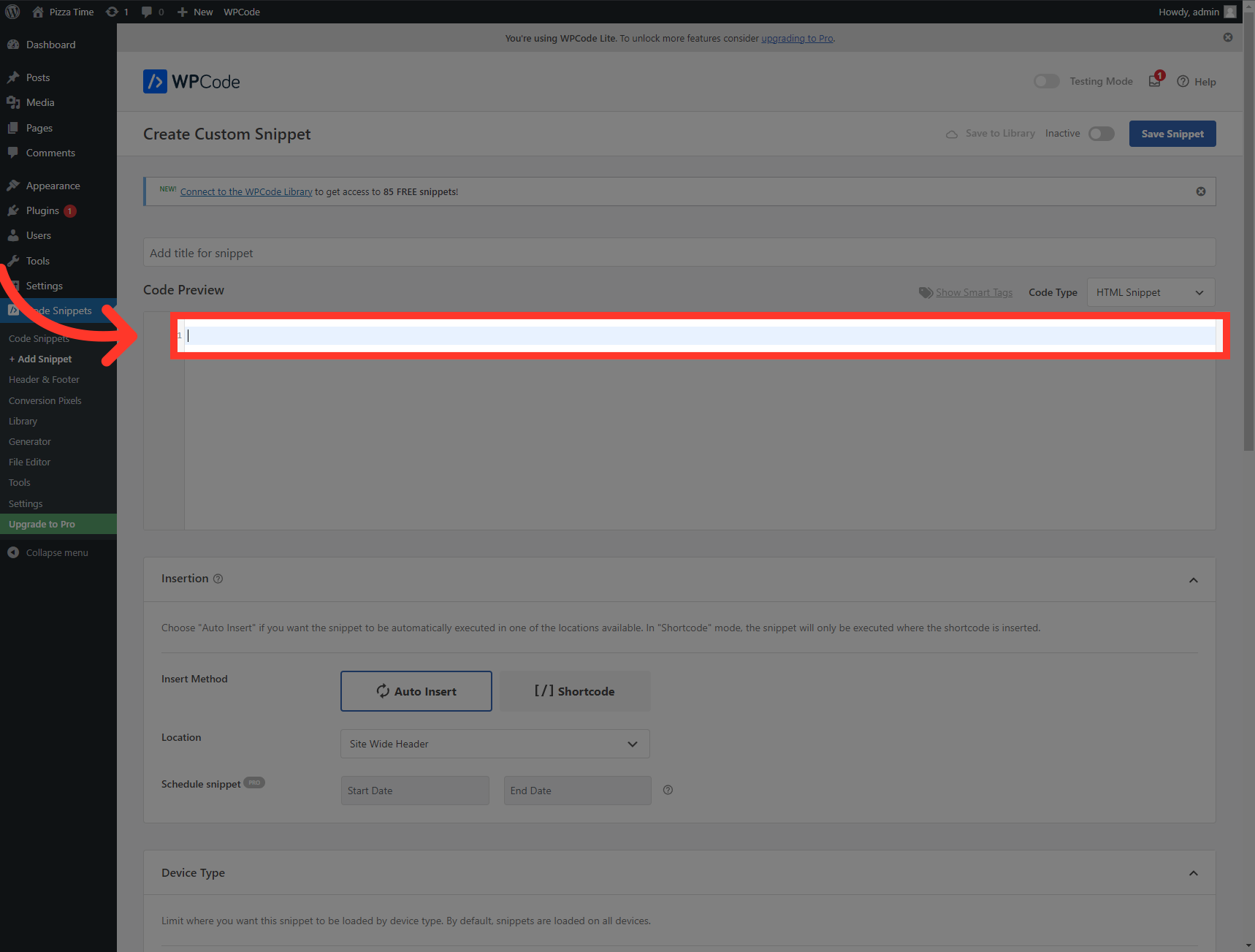
20. Paste the embed code that you copied from AI Team Up earlier.
Paste the embed code that you copied from AI Team Up earlier.
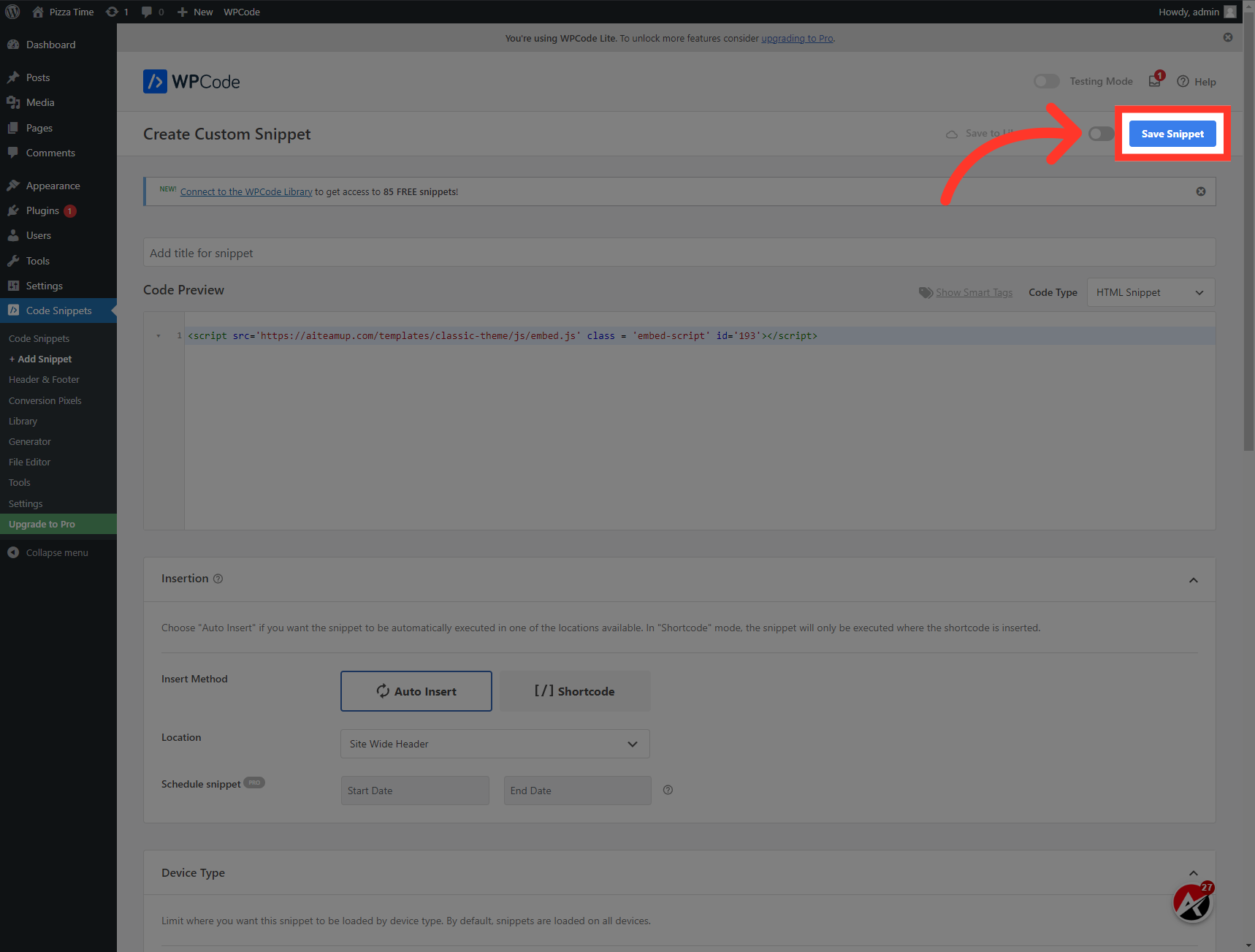
21. Click "Save Snippet"
Click on "Save Snippet" button to Publish the snippet.
Thank you for watching, see you in the next video

AI Team Up
AI Team Up